Installing Smart STB
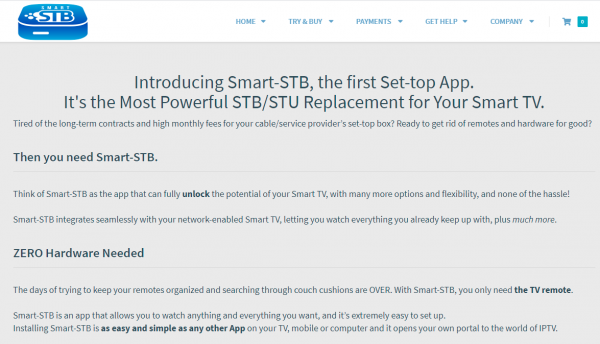
Smart STB is a paid app for Samsung and LG Smart TVs. It works as an IPTV portal client and can be used with TVClub credentials.
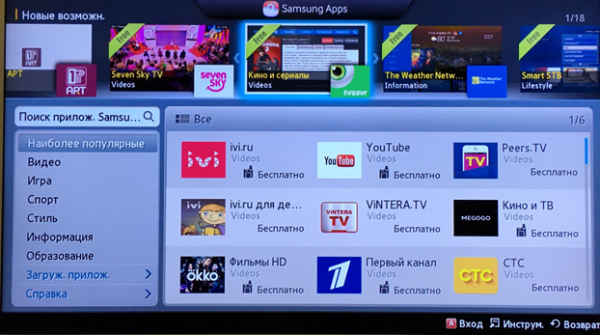
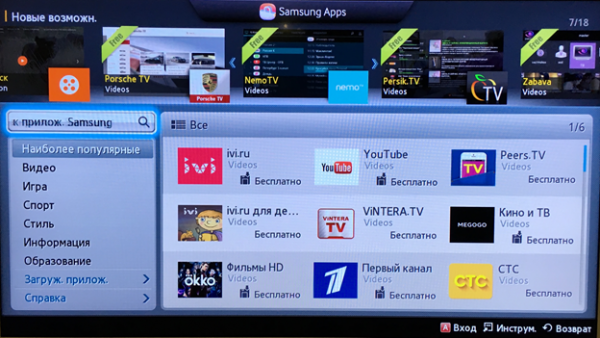
- Open the app store on your TV.
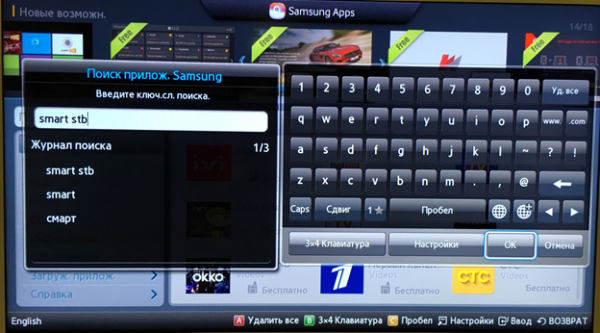
- Open Search.
- Enter Smart STB and confirm with OK.
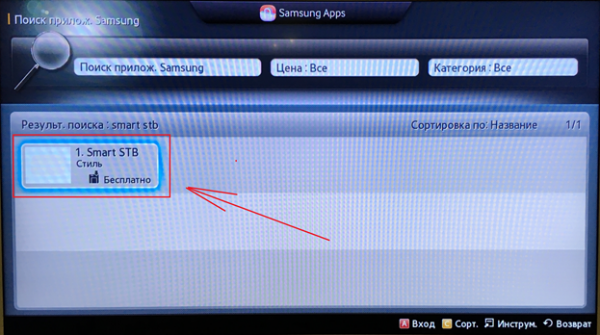
- Select Smart STB in the search results.
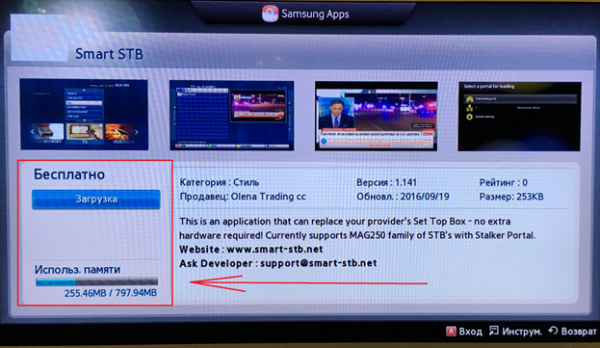
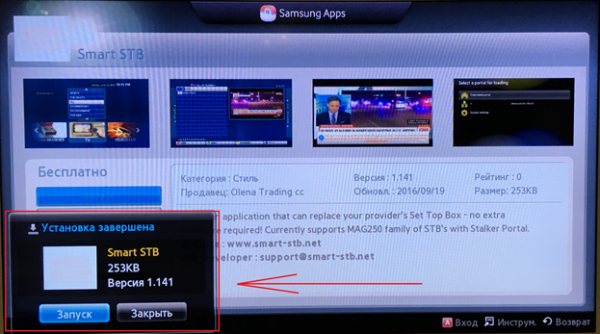
- Open the installation screen.
- Wait until the installation completion message appears.
Activating the trial period
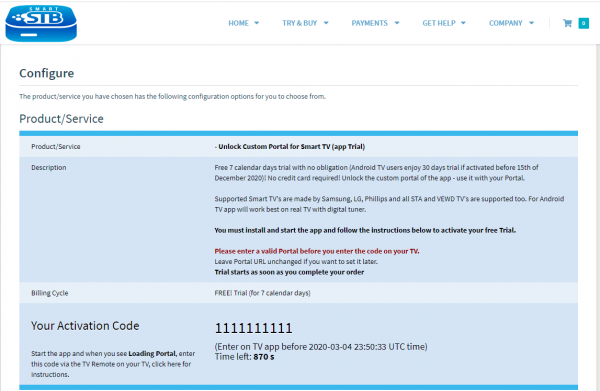
Open Smart STB and start a trial activation. The activation screen shows an activation code; enter it in the app after the portal starts loading.
Use http://p.tvclub.in as the TVClub portal address. The trial period is provided by Smart STB.
Buying the app
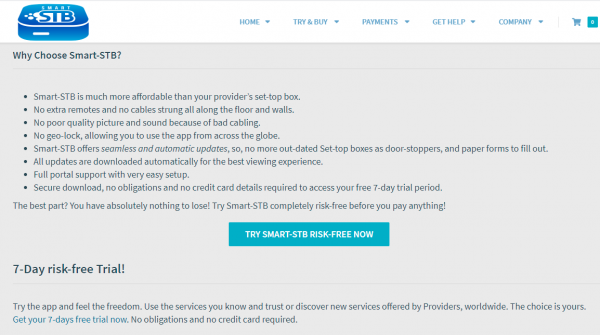
License purchase and billing rules are described in the Smart STB knowledge base.
Launching TVClub in Smart STB
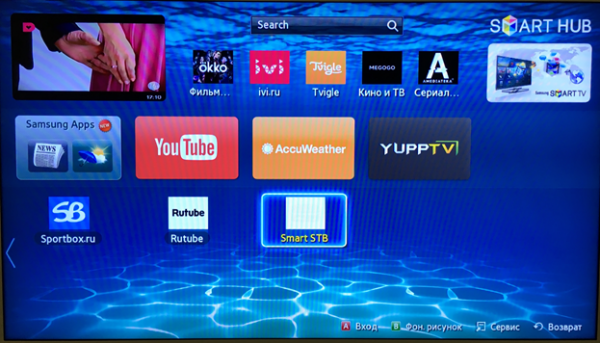
- Open Smart STB.
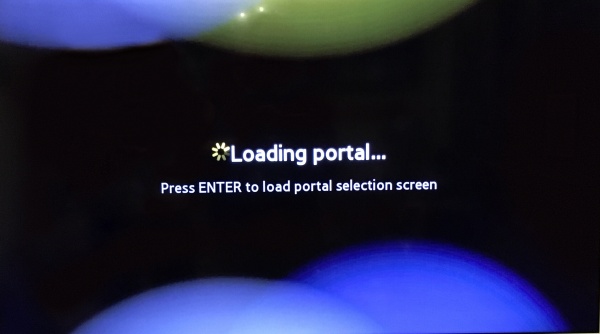
- When Loading portal appears, press Menu or OK on the remote.
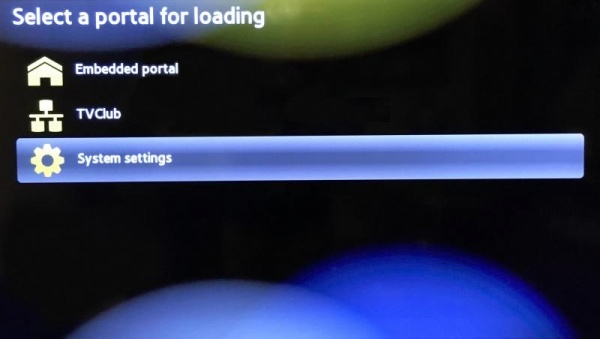
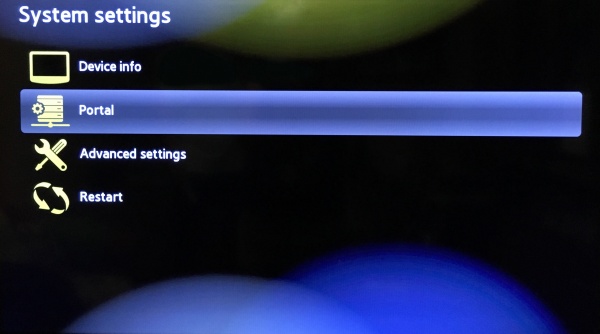
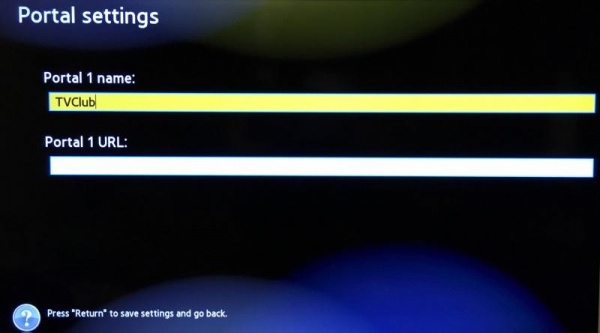
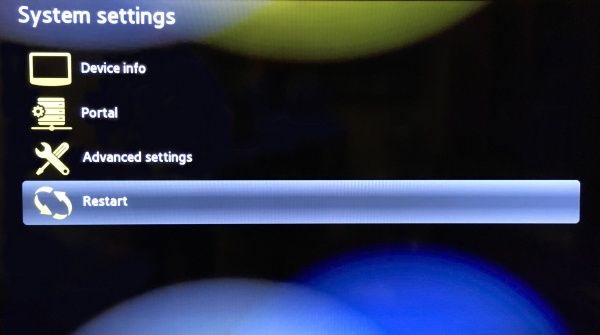
- Open System settings, then Portal.
- Set any name in Portal 1 name and enter http://p.tvclub.in in Portal 1 URL.
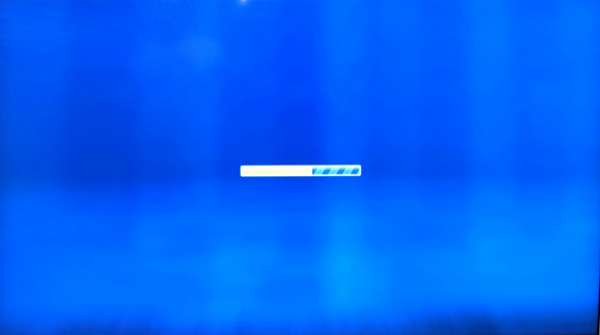
- Exit Portal settings and select Restart.
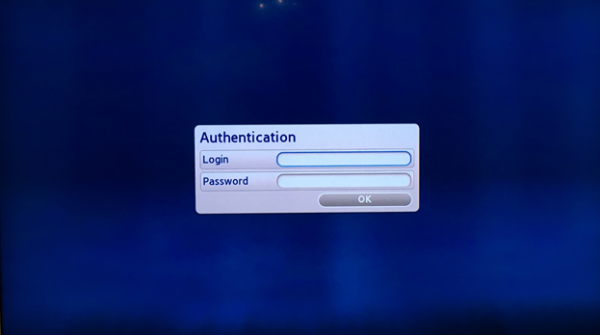
- After loading, enter your TVClub login and password.
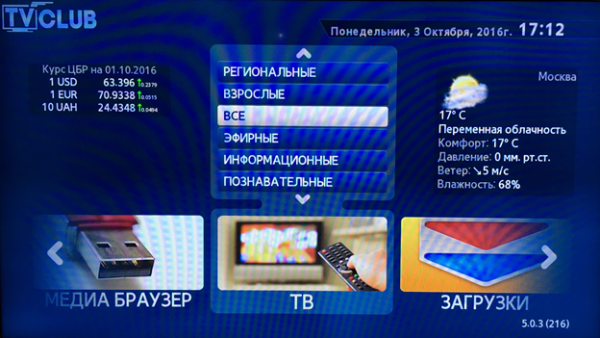
- The TV viewing menu opens.
Channel settings
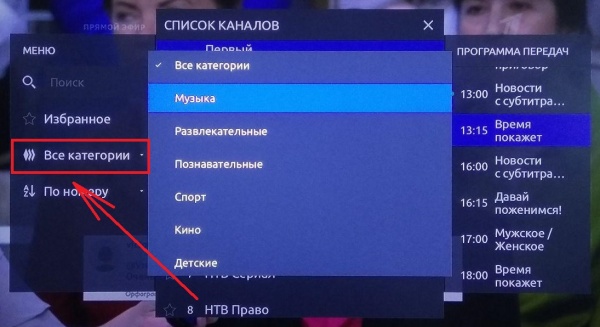
Open a channel full-screen and press Tools on the remote. The menu contains audio track, subtitles, 3D mode, report options and clock display settings.
On some Samsung J-series TVs Smart STB can freeze during portal loading. In this case wait for an app update or contact Smart STB support.