General information
UniPlayer is a convenient player for IPTV and OTT playlists. It works well with TVClub and supports catch-up recordings and the EPG program guide.
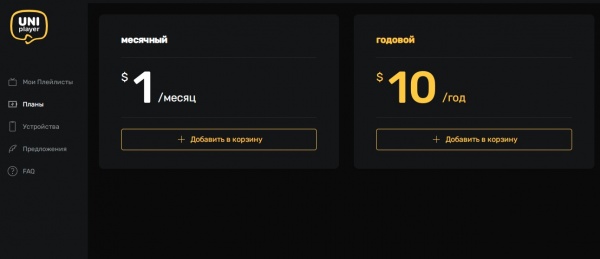
The app is available for Apple TV, iPad and iPhone. UniPlayer is paid, but the developer provides a free one-month trial.
Choosing a player
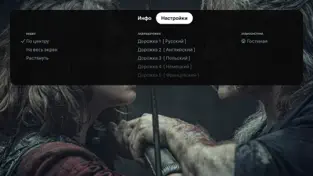
UniPlayer includes two built-in players: the standard Apple TV player and VLC with advanced settings. By default, the app chooses the internal player automatically.
If playback is unstable, choose the best player manually: long-press a playlist to set it for the whole playlist, or long-press a channel to set it for one channel.
Interface examples
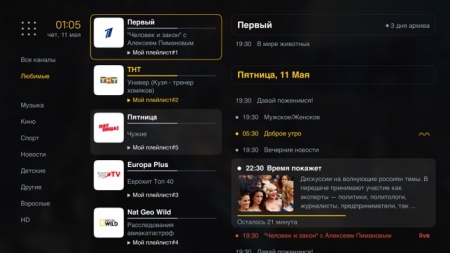
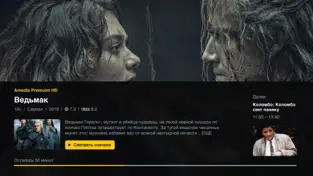
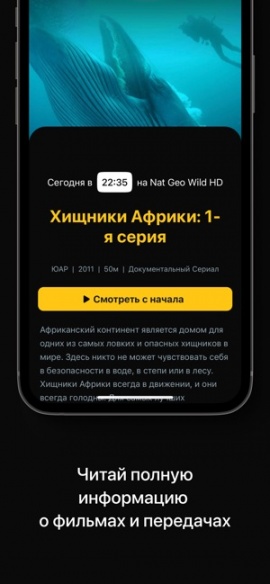
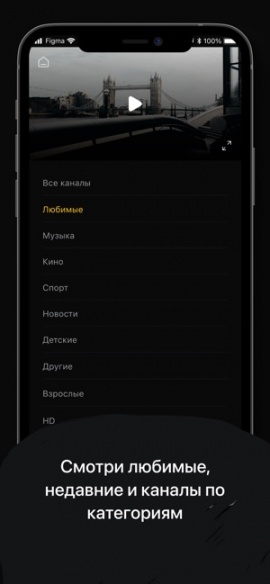
The UniPlayer interface differs between Apple TV, iPad, and iPhone, but playlists, EPG, and catch-up work the same way on every device.
Apple TV interface examples:
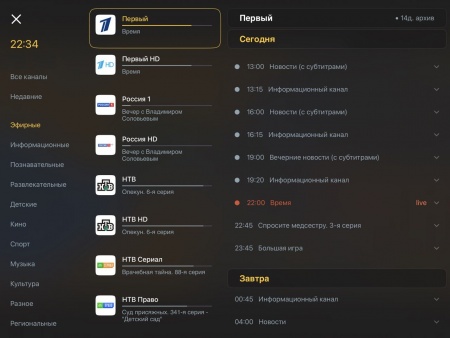
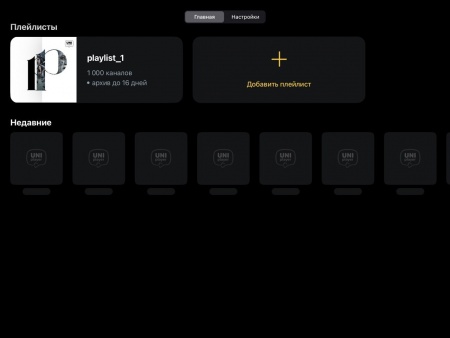
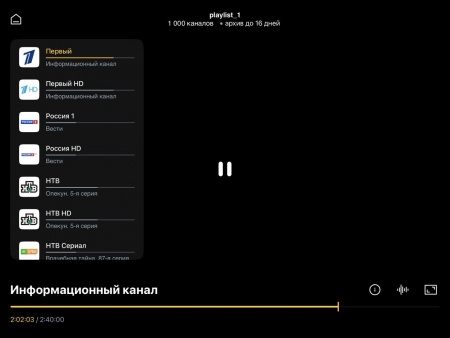
iPad interface examples:
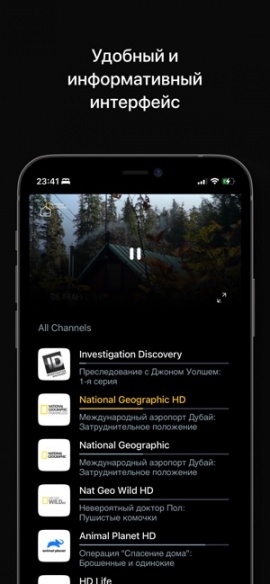
iPhone interface examples:
Installing UniPlayer
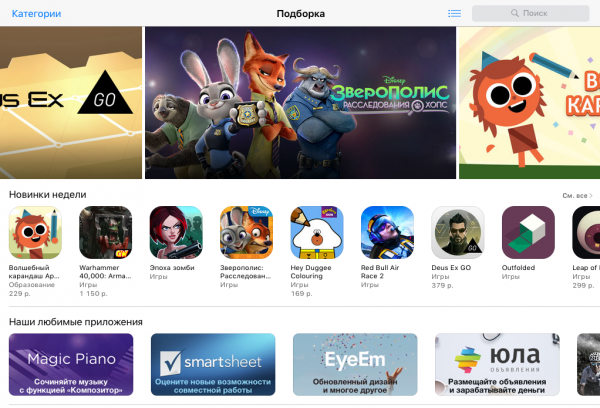
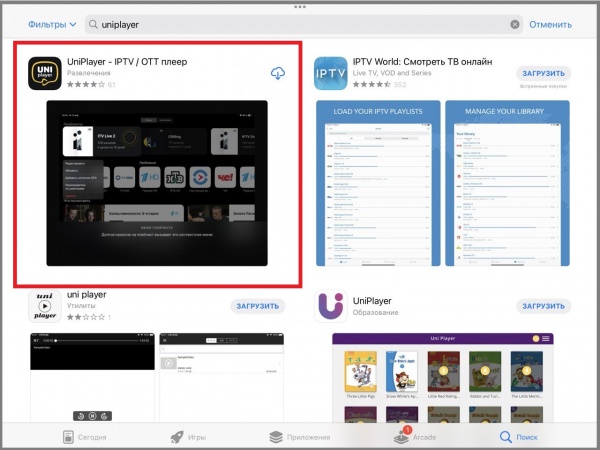
- Open the App Store.
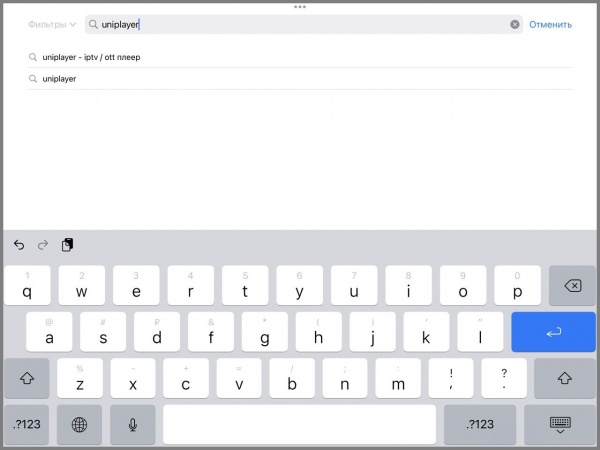
- Go to Search and enter UniPlayer.
- Select UniPlayer in the search results.
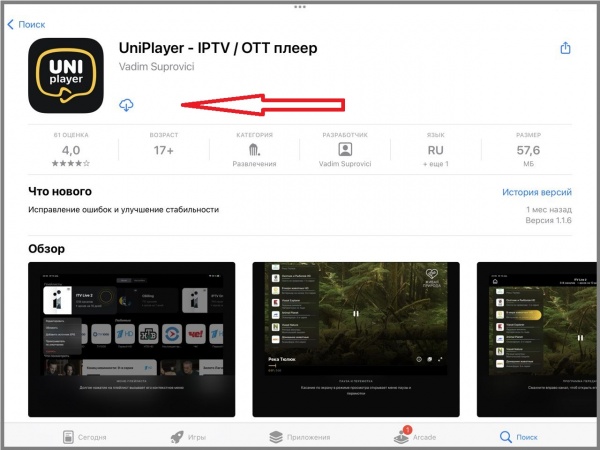
- Open the app page, check the description and press Download.
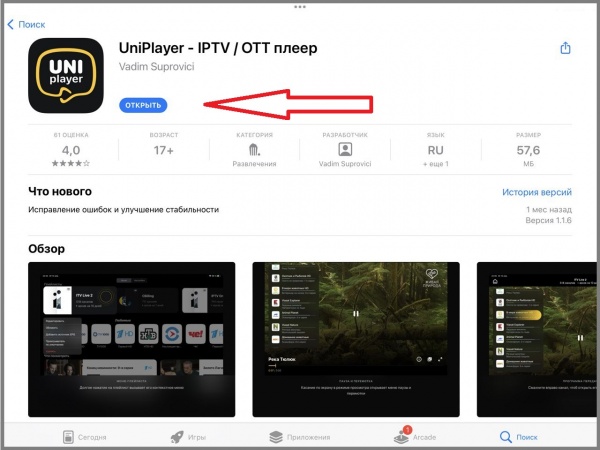
- After installation, press Open.
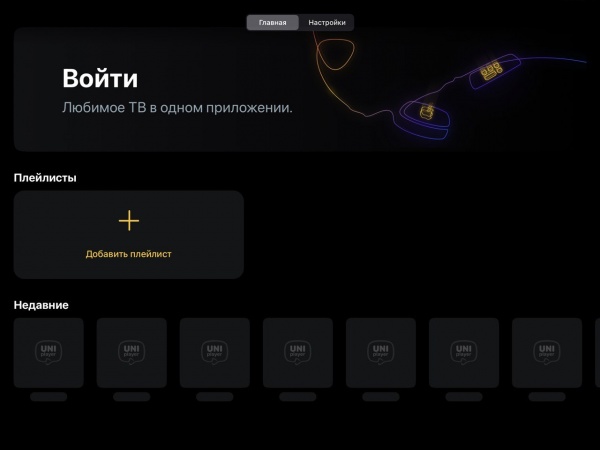
- Make sure the app has opened.
Registering on the UniPlayer website
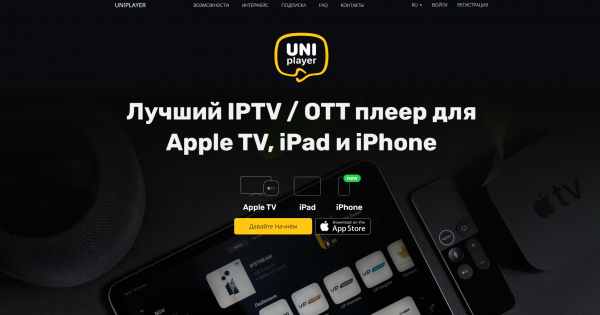
- Open the UniPlayer website.
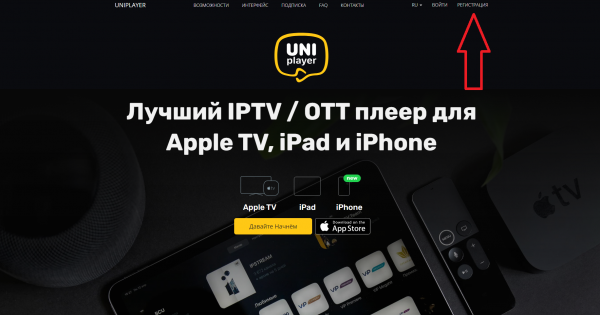
- Press Registration.
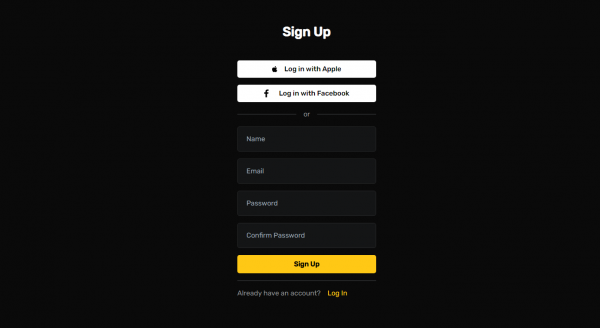
- Fill in the registration form.
- In the Name field enter your name or login.
- In the Email field enter your email address.
- In the Password field enter a password for the UniPlayer account.
- In Confirm Password repeat the password.
- Press Sign Up.
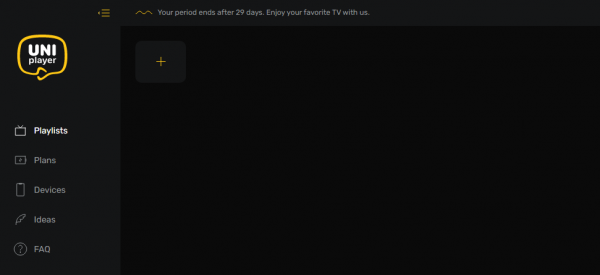
- After registration, the UniPlayer account dashboard opens.
Adding a playlist to the app
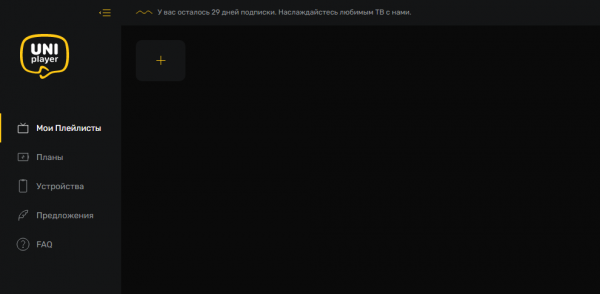
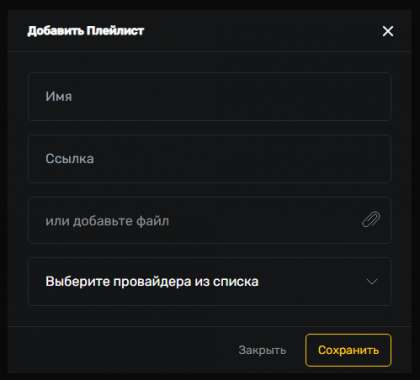
You can add the TVClub playlist through the UniPlayer account dashboard. If you add the playlist by URL, do not upload a file; if you upload a file, leave the URL field empty.
- In the account dashboard, open My Playlists.
- Press the add playlist button
 .
. - In the form, enter a playlist name.
- Choose how to add the playlist: playlist URL or playlist file.
- In the URL field, paste the playlist link from your TVClub account.
- In the provider list, choose TVClub. If the provider is missing or selected incorrectly, the program guide will not be displayed.
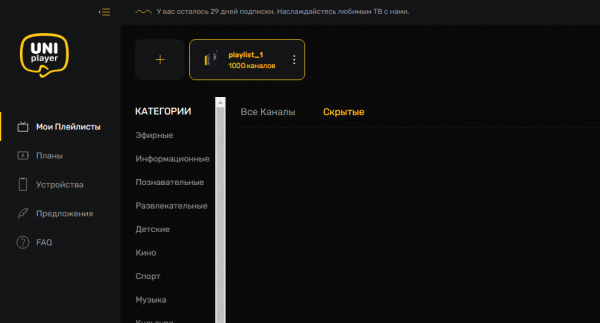
- Press Save.
- Check that the playlist appears in My Playlists.
Adding a device
- Open UniPlayer on Apple TV, iPad, or iPhone and sign in with the email address and password associated with your UniPlayer account.
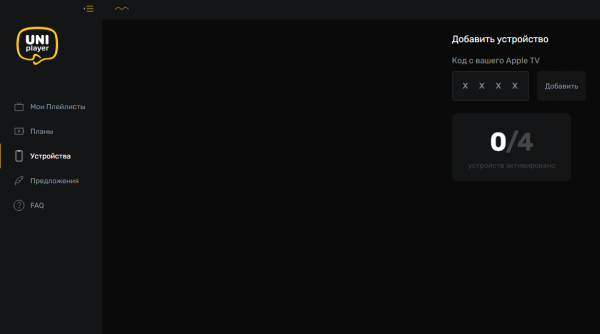
- After sign-in, the app shows a four-character code.
- On the UniPlayer website, open the account dashboard and go to Devices.
- Enter the code from Apple TV and press Add.
Adding EPG
If you do not add the TVClub EPG source, the app will use its own program guide. For correct TVClub EPG data, connect the source from the TVClub account dashboard.
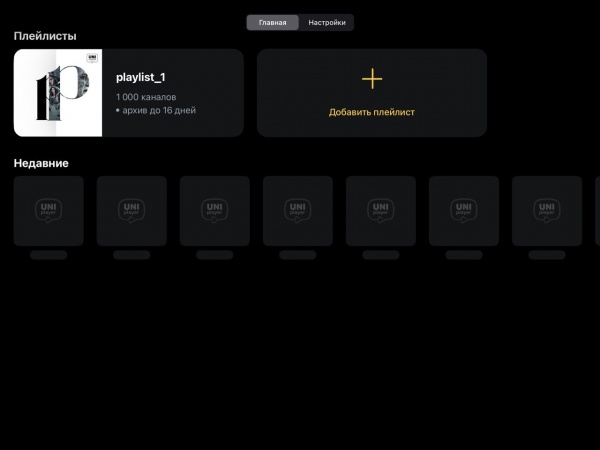
- Open the installed UniPlayer app.
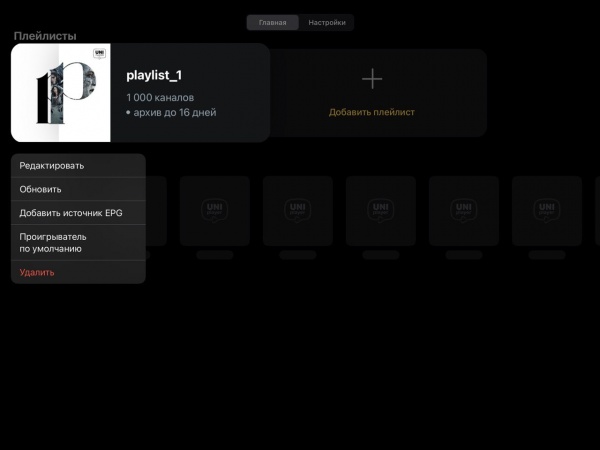
- Select the loaded playlist and choose Add EPG source. On Apple TV, open this menu with a long press on the center of the touch surface; on iPad and iPhone, long-press the playlist.
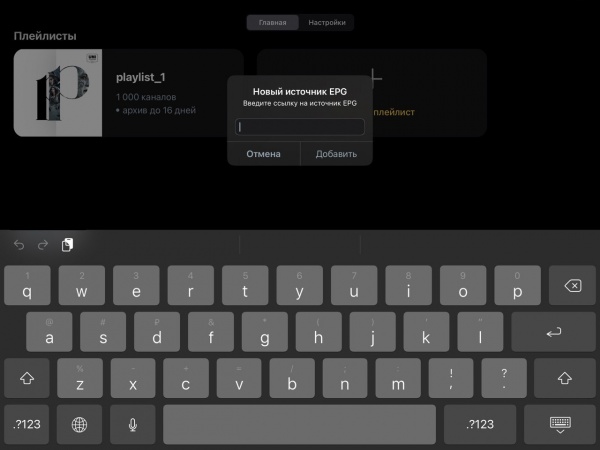
- Enter the EPG source URL and press Add. The URL is available in the TVClub account under My services: you can use the full guide with descriptions or the lightweight guide without descriptions.
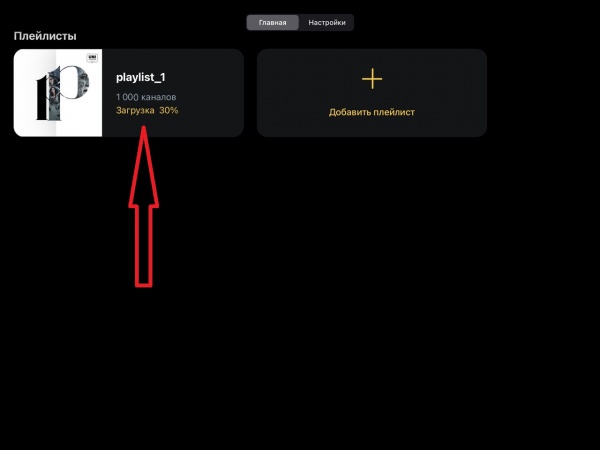
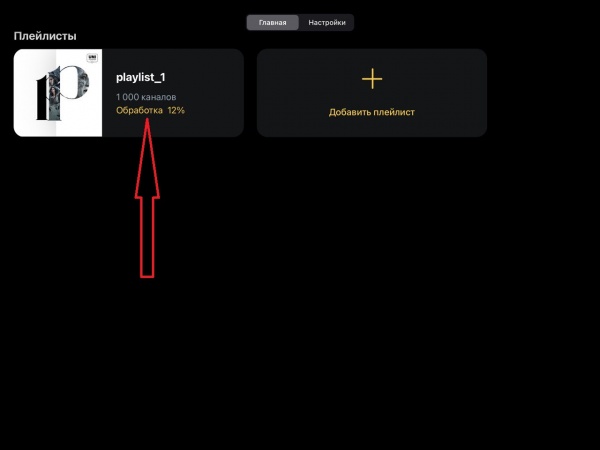
- Wait for Loading and Processing to finish. After that, the playlist will use the TVClub program guide.
Watching channels, program guide and catch-up
Watching channels and EPG
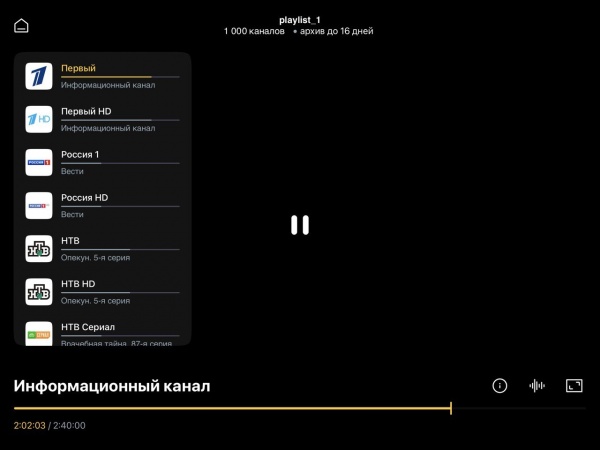
- Open UniPlayer and select the loaded playlist.
- By default, the first channel in the list starts playing.
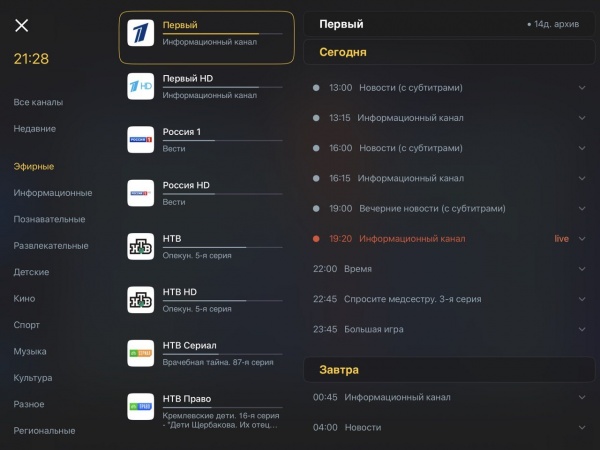
- Open the channel list menu: on iPad and iPhone, tap the screen; on Apple TV, swipe right on the remote touch surface.
- Move to channel groups and the channel list.
- Choose the required group and channel.
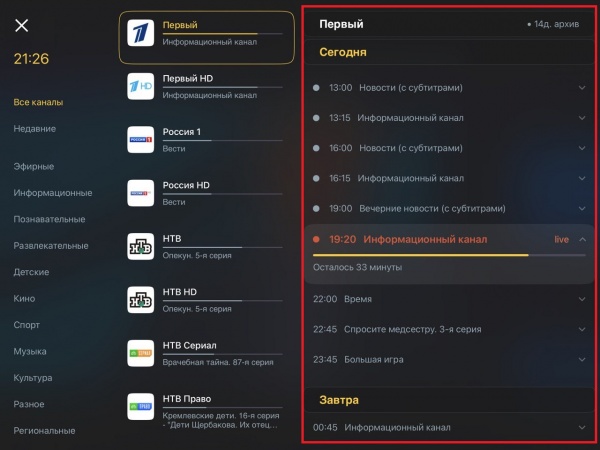
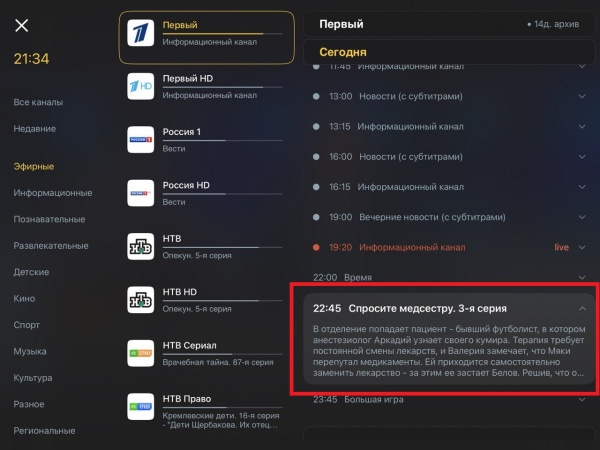
- To view the program guide, open the guide section and scroll the schedule up and down.
- To open a program description, press the program description icon
 .
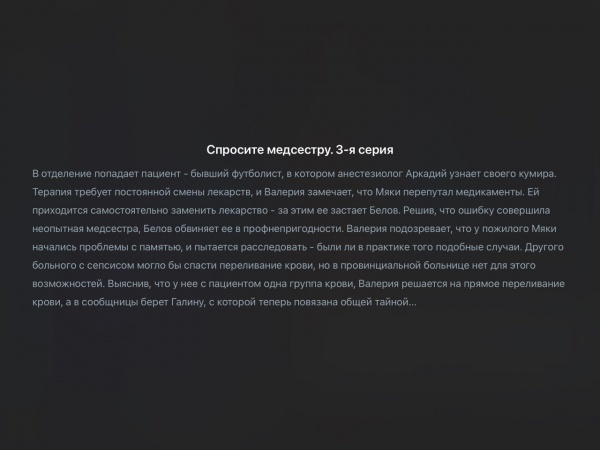
. - To view the description full-screen, press the expanded program description.
Watching catch-up recordings
- Open UniPlayer and select the loaded playlist.
- Open the channel list menu.
- Move to channel groups and select the required channel.
- In the program guide, choose the program you want to watch from catch-up.
- Recorded programs are marked with the icon
 .
. - Select the program and start playback.
Rewinding
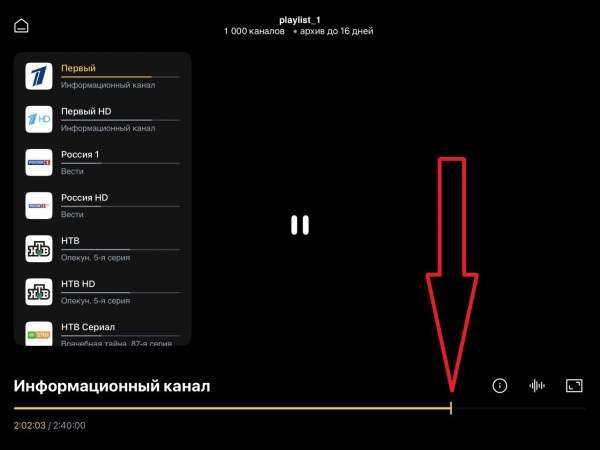
- To pause playback, press Play/Pause on the Apple TV remote; on an iPad or iPhone, tap the screen.
- To rewind or fast-forward, move the cursor along the playback progress bar.
Buying the app
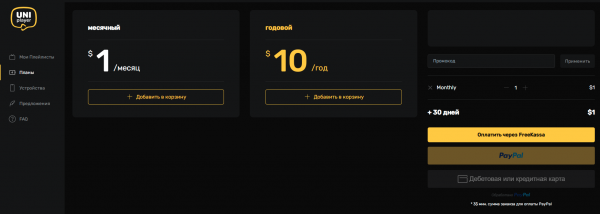
- Purchase a UniPlayer license through your account on the developer’s website. TVClub does not sell the app or process UniPlayer license payments.
- Open Plans and choose the required package.
- Choose a convenient payment method and finish the purchase.