TVPlayer is an app for Samsung TVs running Tizen. It is installed from a USB drive and lets you watch TVClub channels and use the TV guide, Catch-Up archive, Favorites, settings and programme search.
Installing the TVPlayer app
Important. TVPlayer can be installed on Samsung Tizen TVs released from 2015 onward, starting with the J series. On some models the USB drive must remain connected after installation.
Install the app from a USB drive. Download both files and place them in the same folder.
- Create a
userwidgetfolder on the USB drive. - Put
tvplayer.tmgandwidget.licenseinto theuserwidgetfolder. - Insert the USB drive into the TV.
- If everything is correct, the top-left corner will show
[User App]: tvplayer unstallation with USB packed will be started !and then[User App]: tvplayer unstallation with USB packed is done !.
Signing in
- Open the Apps menu on the TV, go to My Apps and start TVPlayer.
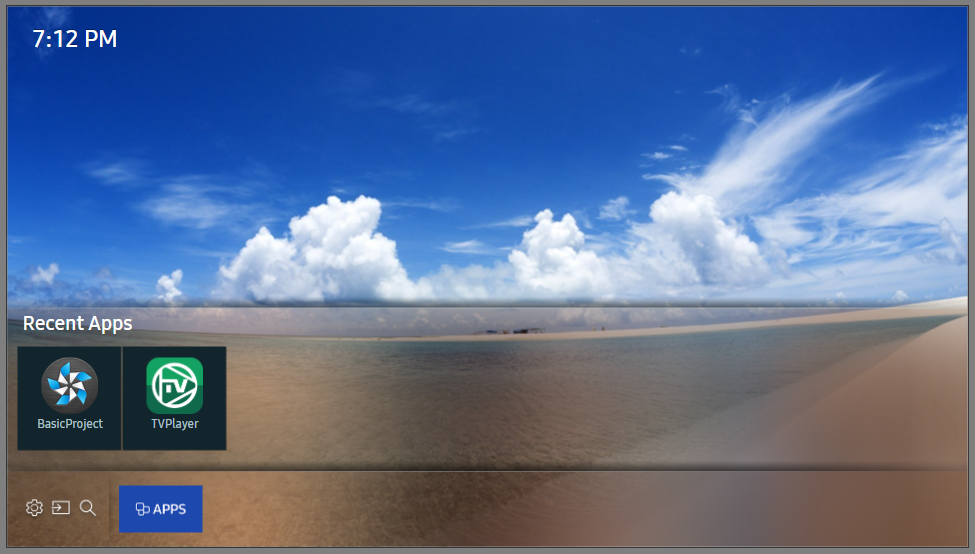
If the TVPlayer shortcut is missing, turn the TV off and on again with the remote control so the USB installation runs again.
- On the sign-in screen, fill in Login and Password. Leave API server set to
api.iptv.so.
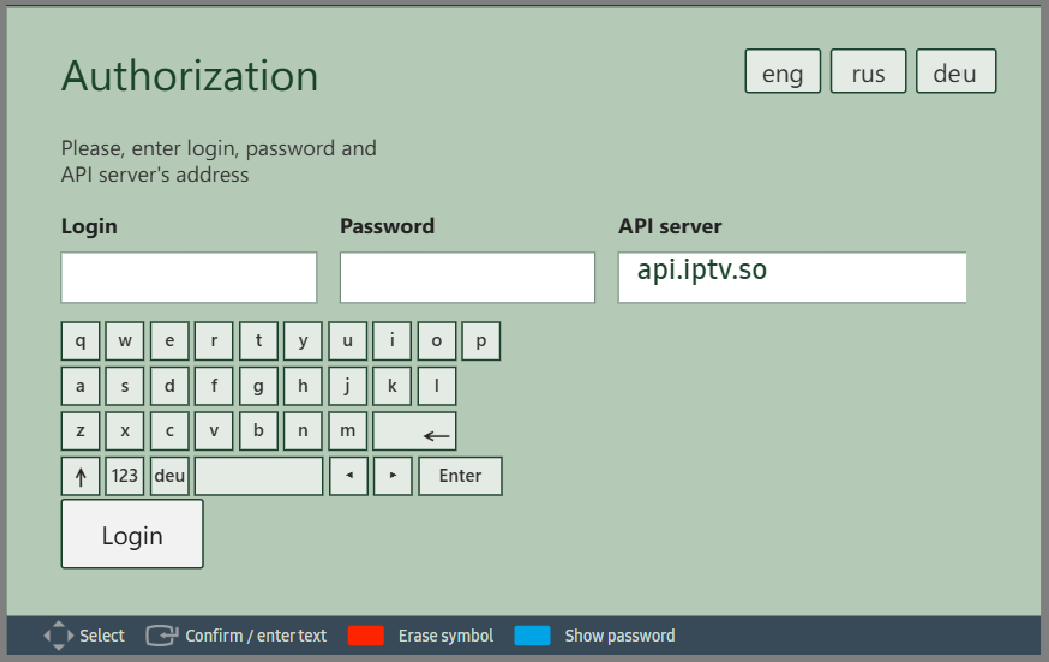
Press Login below the on-screen keyboard. To change the menu language, use the buttons  on the screen.
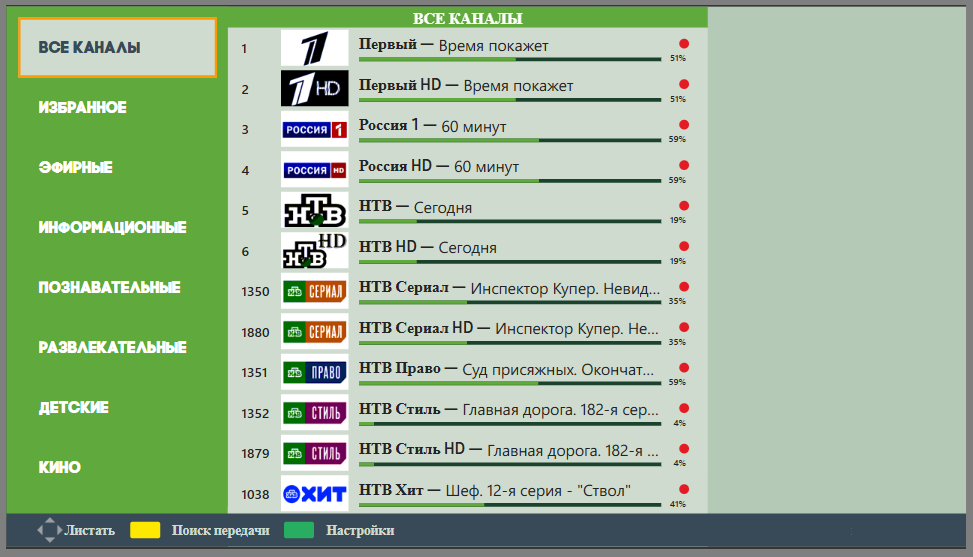
- After a successful sign-in, the app menu opens.
Watching channels, TV guide and catch-up archive
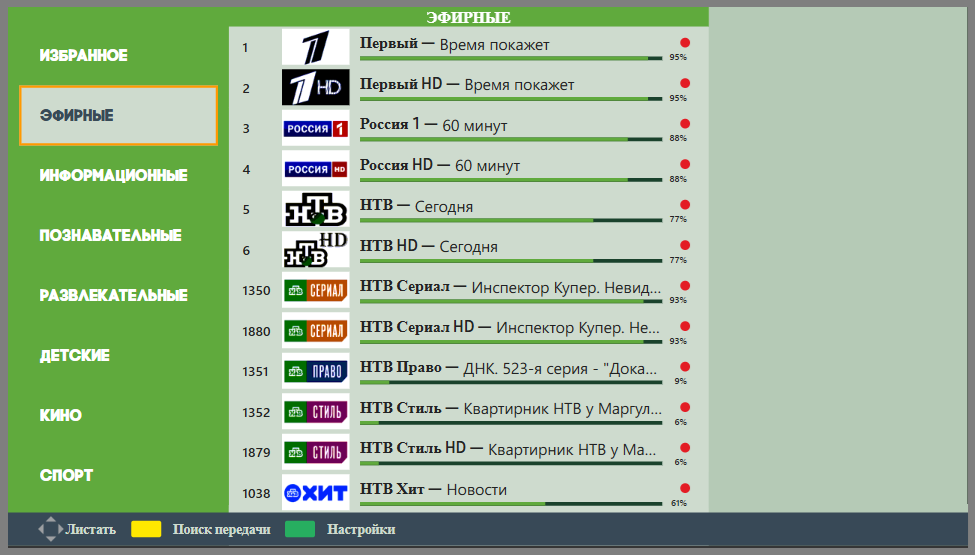
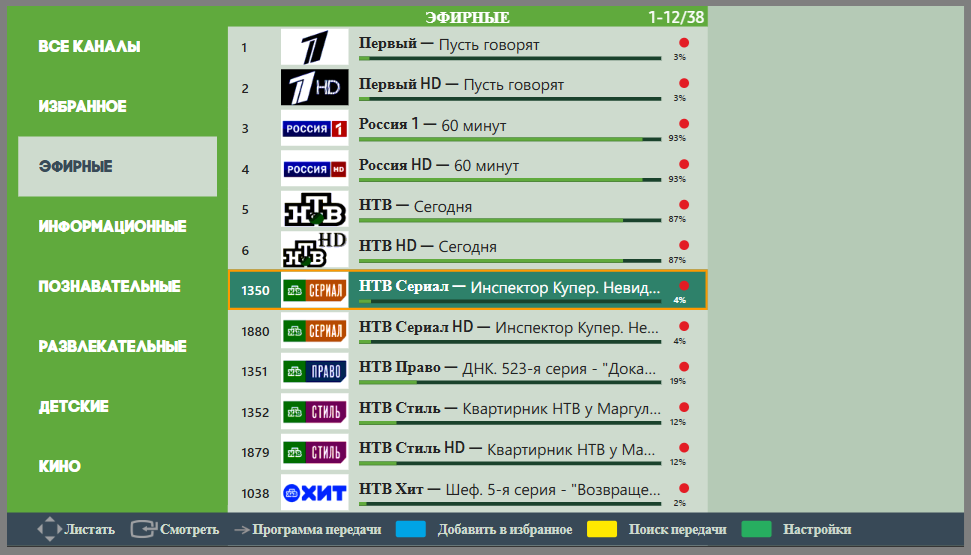
Watching TV channels
- Choose the required channel group.
- Move to the channel list with the left and right buttons on the remote.
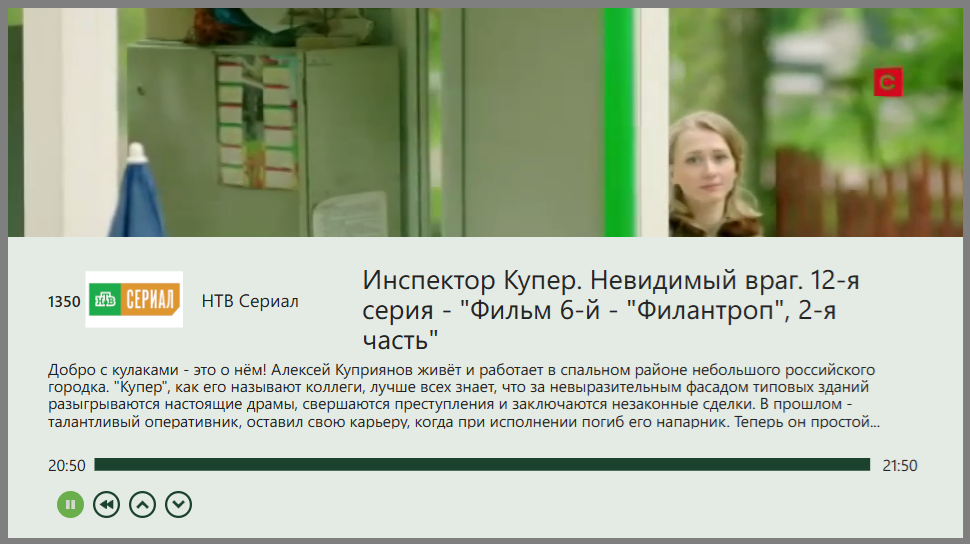
- Choose a channel and start playback.
Opening the TV guide
- Choose the required channel group.
- Move to the channel list with the left and right buttons.
- Press right on the selected channel to open the TV guide.
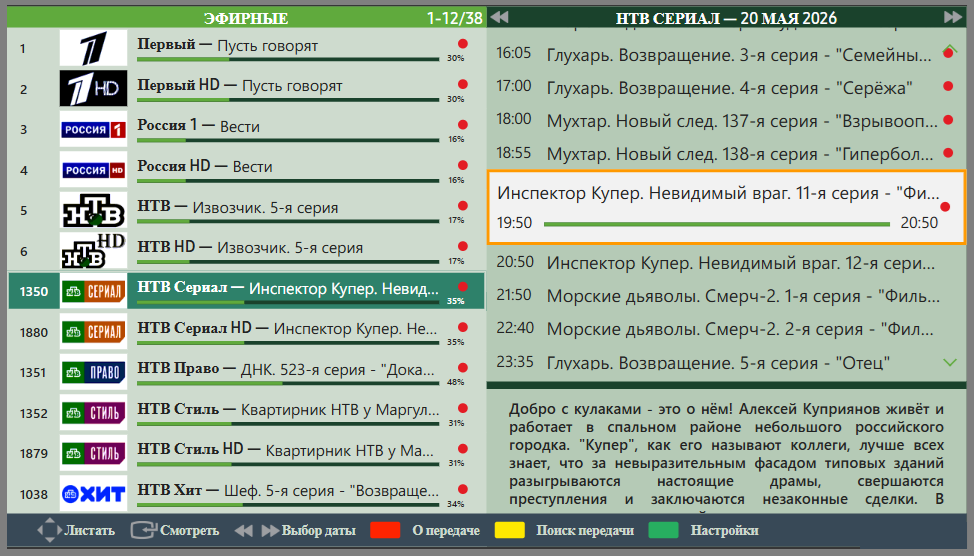
Use the up and down buttons to browse the current day. Use the buttons  and
and  above the guide to change the date.
Watching catch-up programmes
- In the TV guide, choose a recorded programme and start playback.
The selected archive recording starts playing. Channels and programmes available in the archive are marked with the archive icon  .
.
Creating a Favorites list
- Choose the required channel group.
- Move to the channel list with the left and right buttons.
- Select a channel and press the blue button in the legend at the bottom of the screen or on the TV remote.
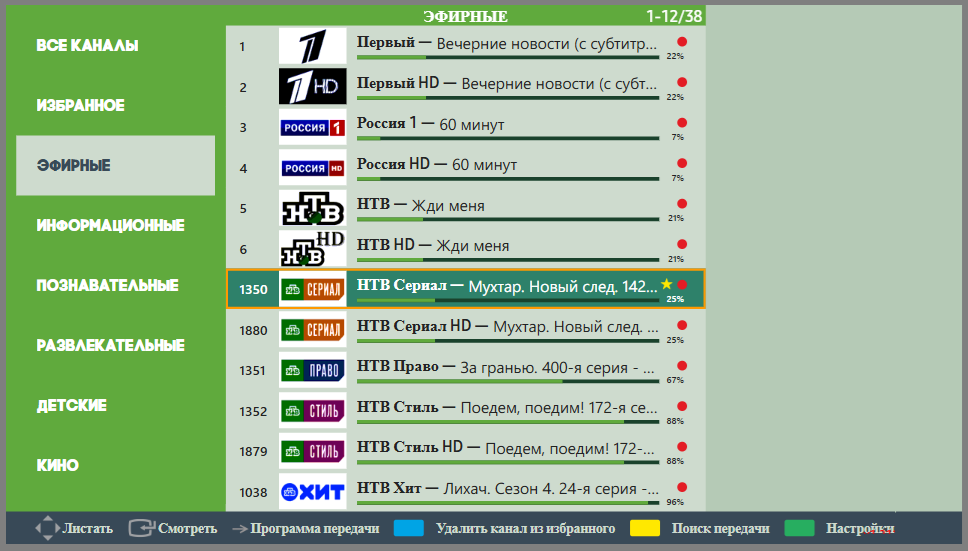
The channel will be marked with the Favorites icon  .
.
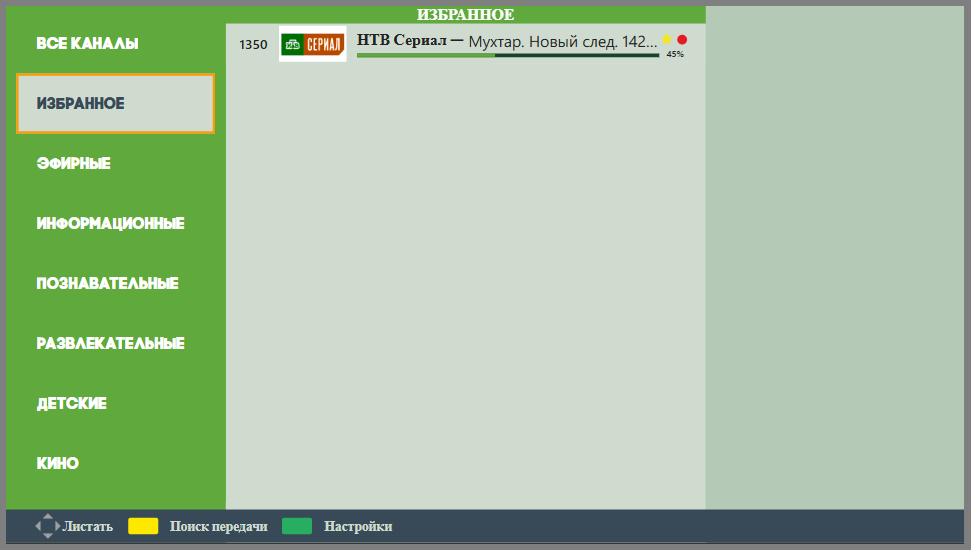
To remove a channel from Favorites, select it and press the blue button again. The icon disappears and the channel is removed from the list.
Settings
Account
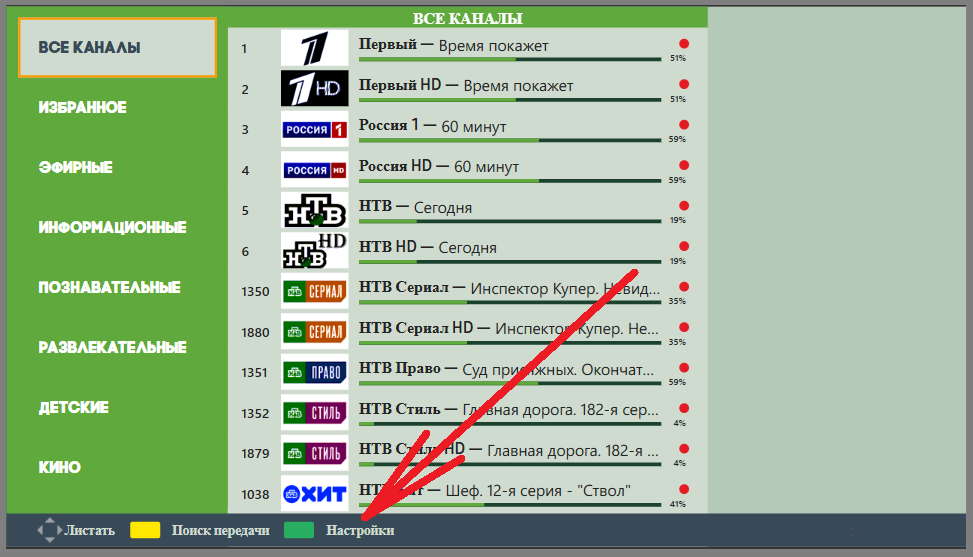
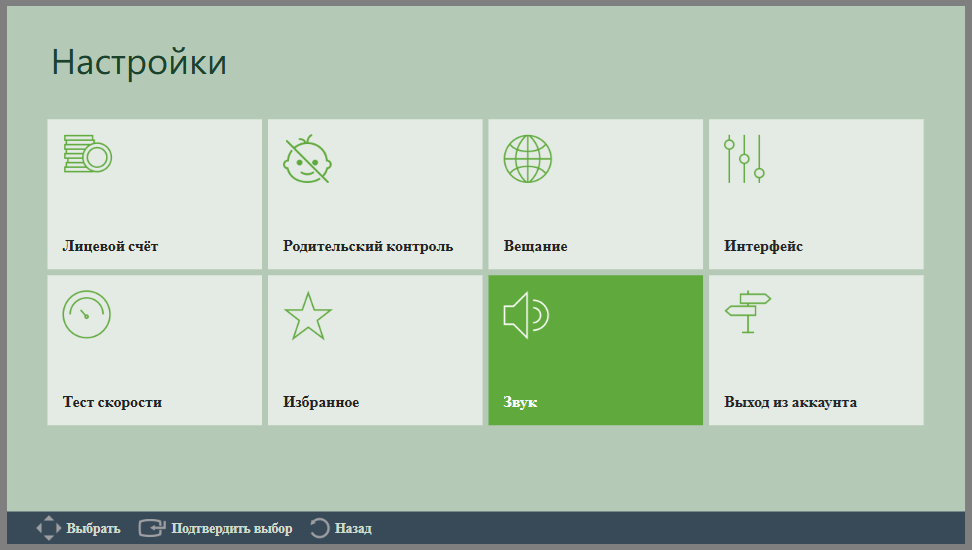
- Open settings with the green button in the app legend or on the remote.
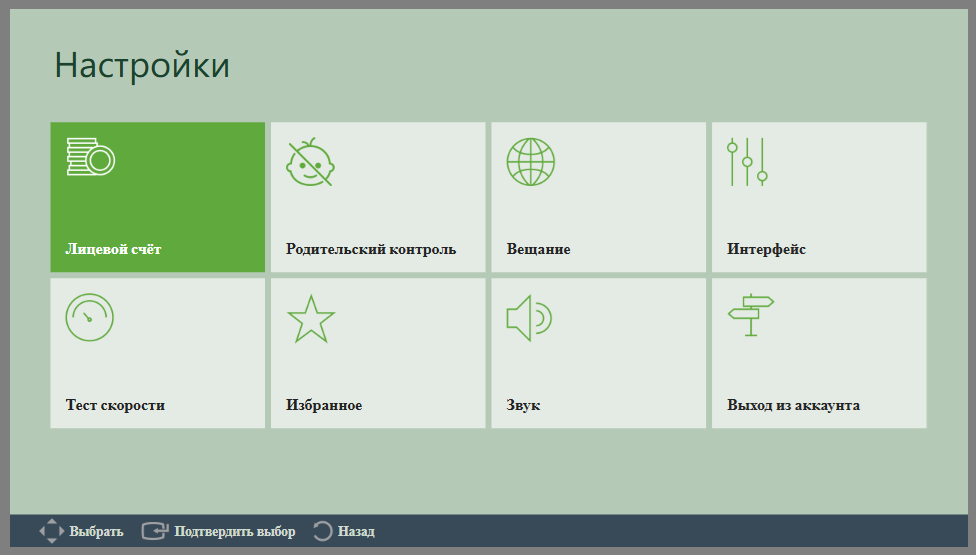
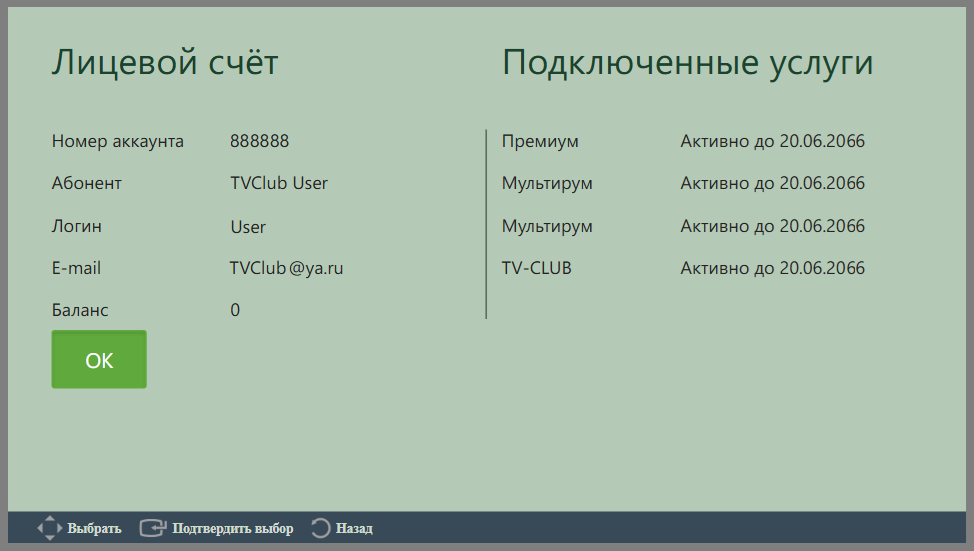
- Choose Account in Settings.
- Check your account information and the date until which the services are active.
Parental control
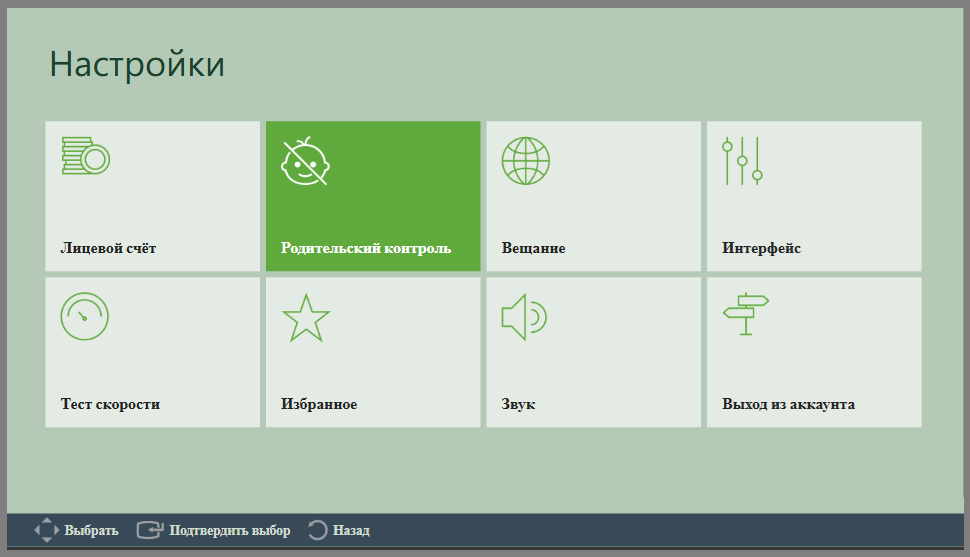
- Open settings with the green button.
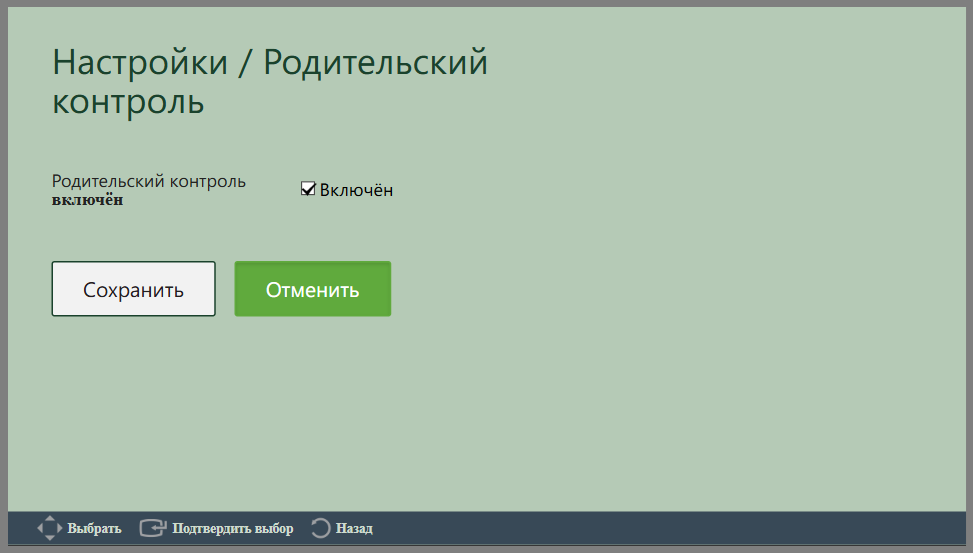
- Choose Parental control.
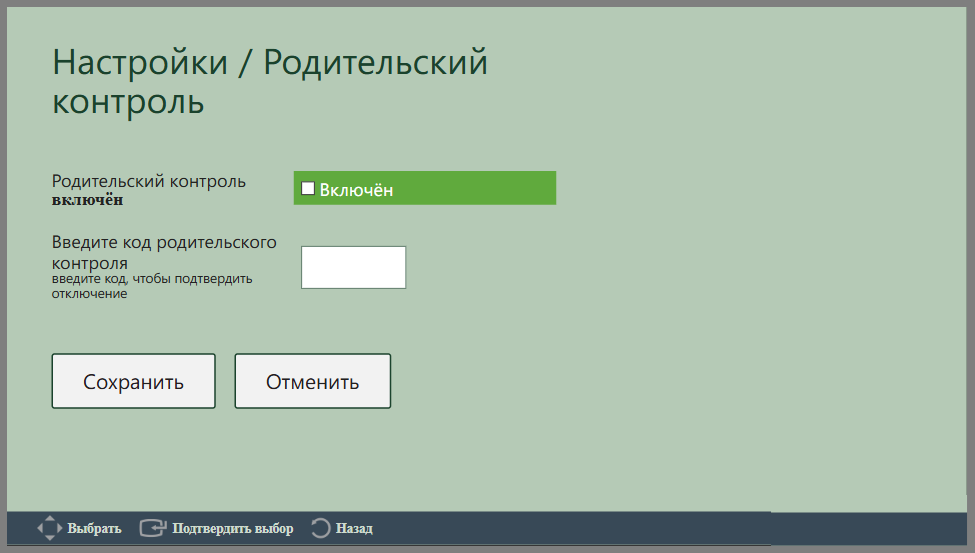
- To disable the PIN request for adult channels, clear the Enabled checkbox.
- Enter the current PIN code and press Save.
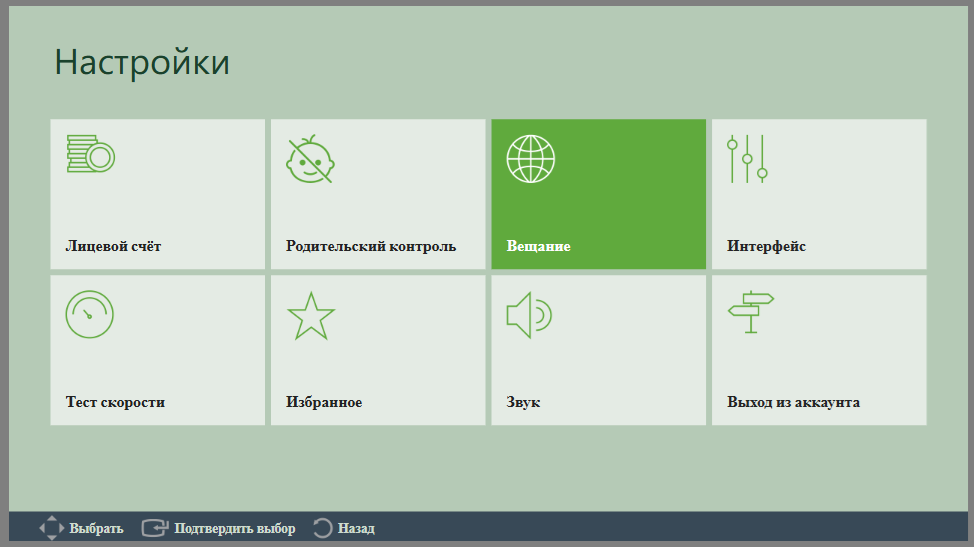
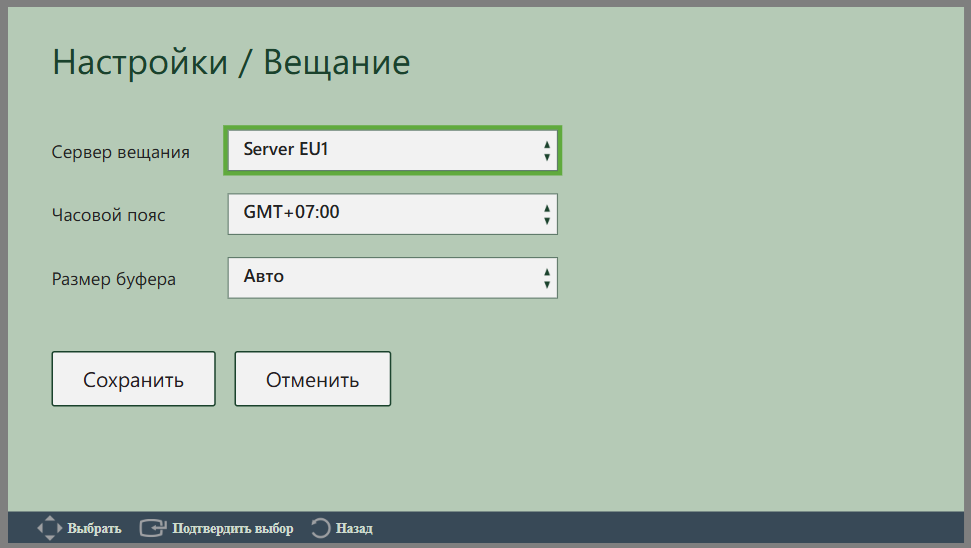
Broadcasting
- Open settings with the green button.
- Choose Broadcasting.
- In Broadcast server, choose a server and press Save.
- In Time zone, choose your time zone and press Save.
- In Buffer size, choose the buffer value and press Save.
Interface
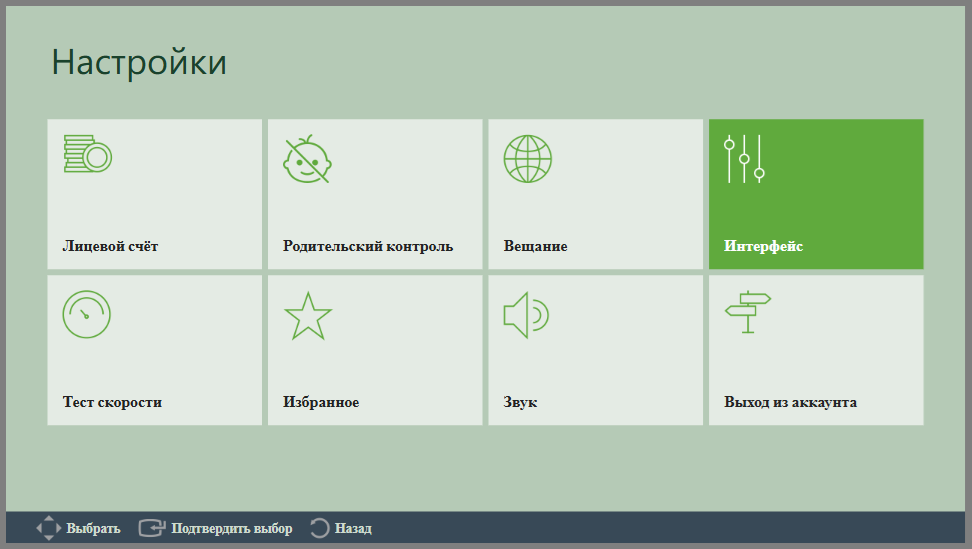
- Open settings with the green button.
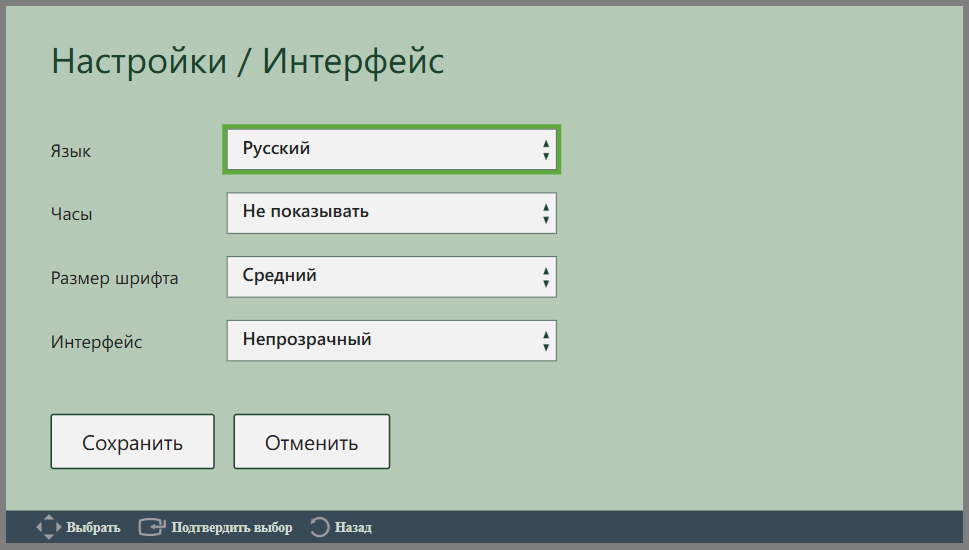
- Choose Interface.
- In Language, choose the menu language and press Save.
- In Clock, choose where to show the time and press Save.
- In Font size, choose the font size and press Save.
- In Interface, choose interface transparency and press Save.
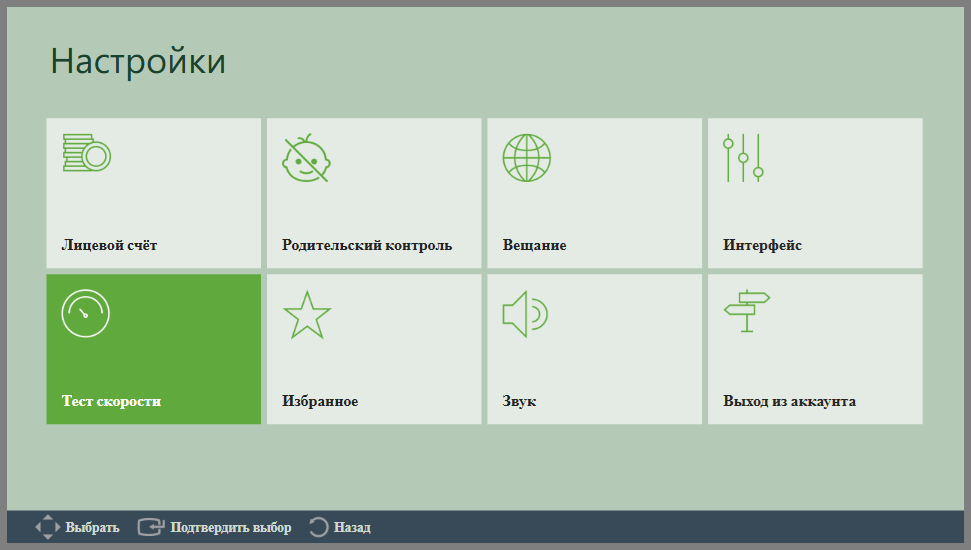
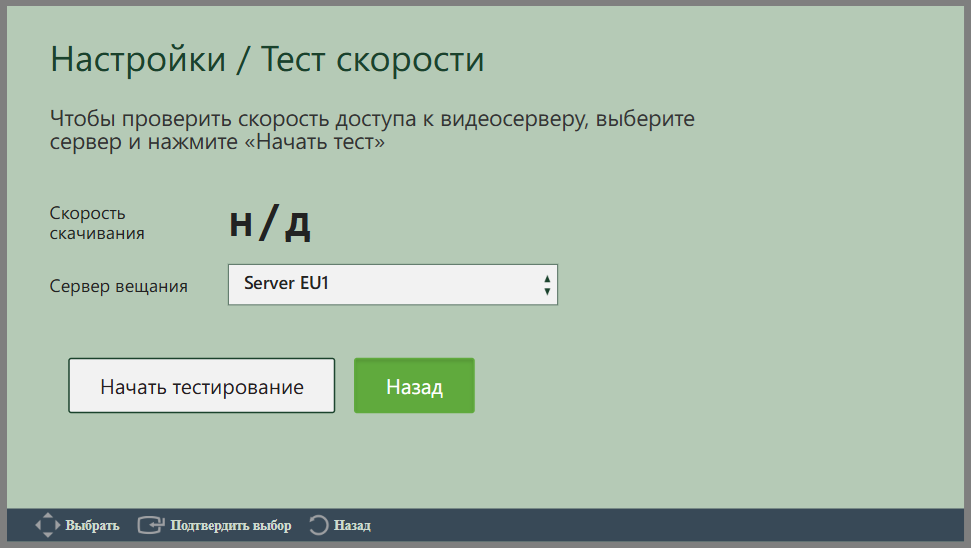
Speed test
- Open settings with the green button.
- Choose Speed test.
- In Broadcast server, choose a server and press Start test.
Favorites
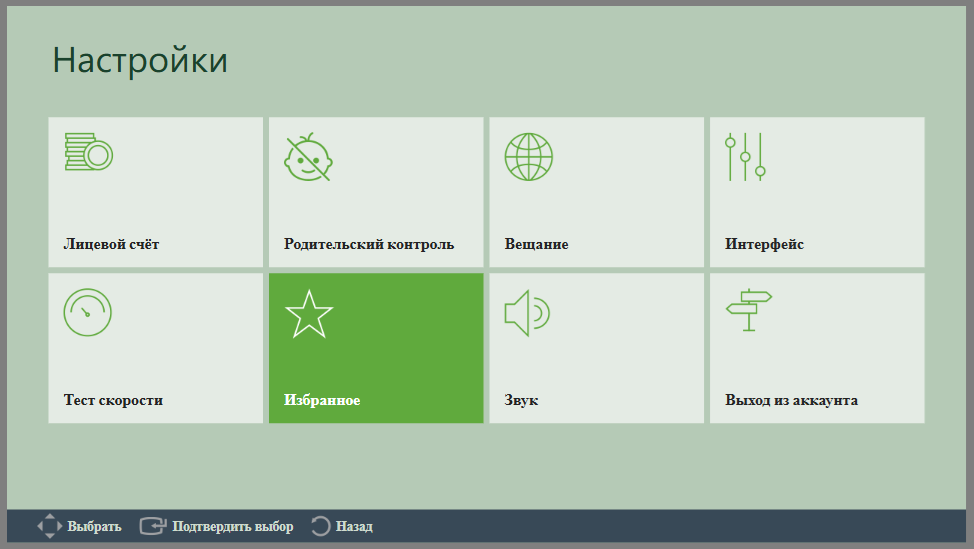
- Open settings with the green button.
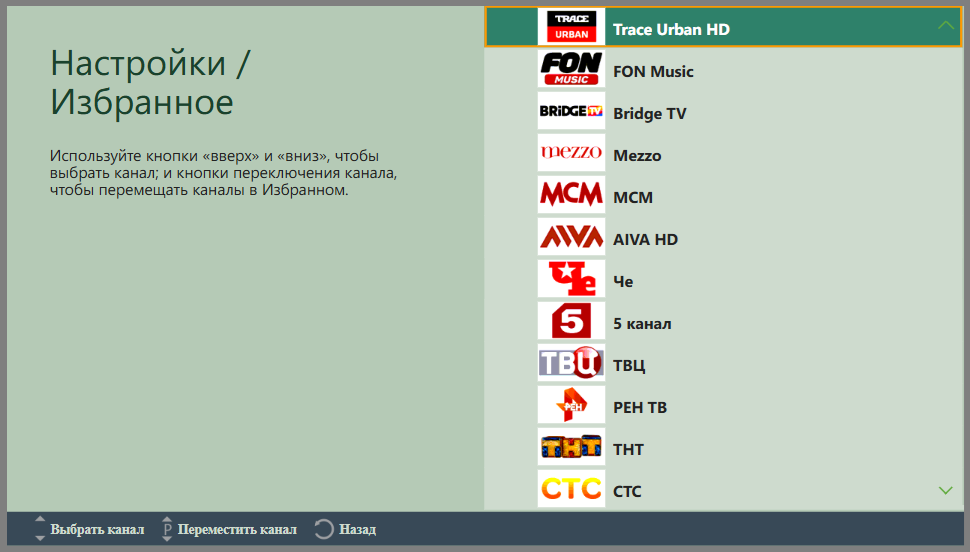
- Choose Favorites.
- Highlight the channel you want to move.
- Use P+ and P- on the remote to move the channel.
Audio
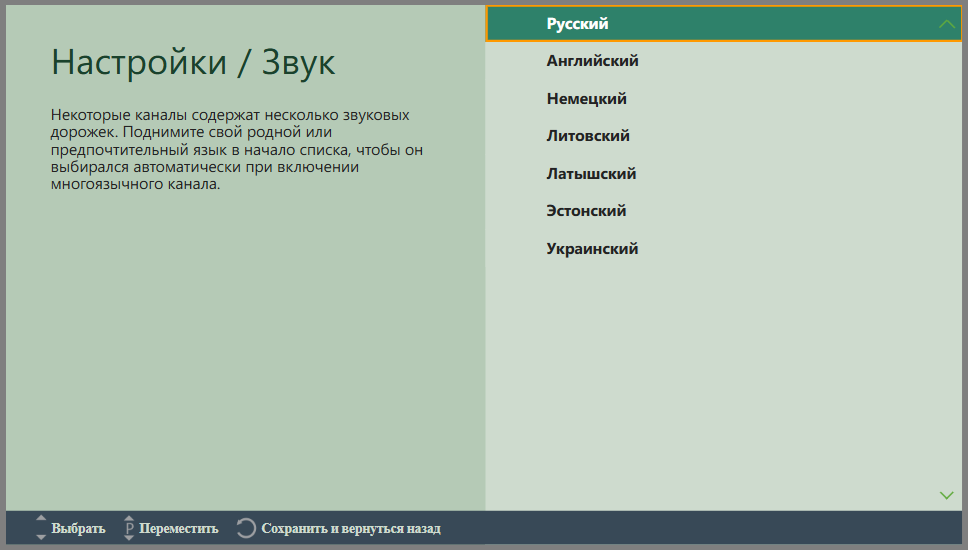
Some channels include several audio tracks. You can move the preferred language to the top so it is selected automatically when the channel starts. Russian is selected by default.
- Open settings with the green button.
- Choose Audio.
- In the language list on the right, choose the preferred language for channels with multiple audio tracks.
Signing out
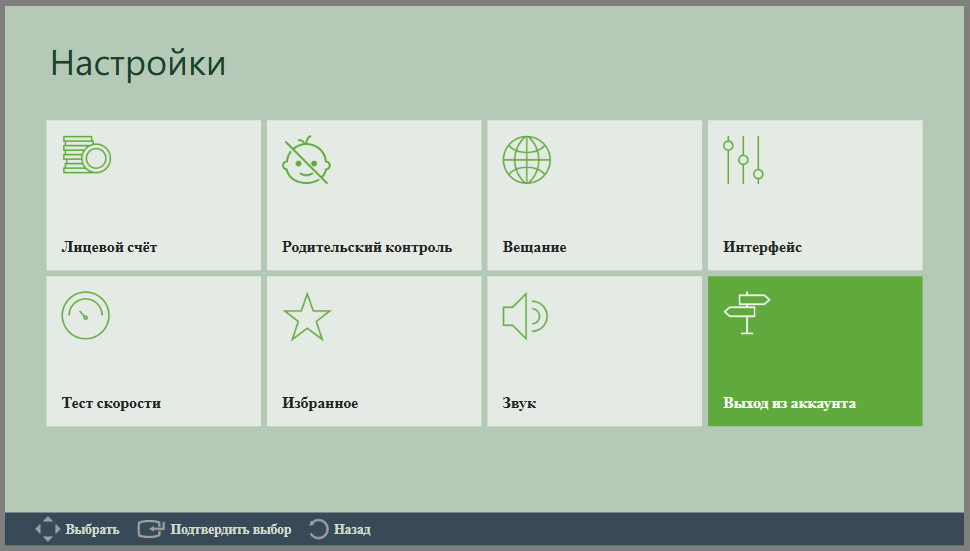
- Open settings with the green button.
- Choose Sign out.
Programme search
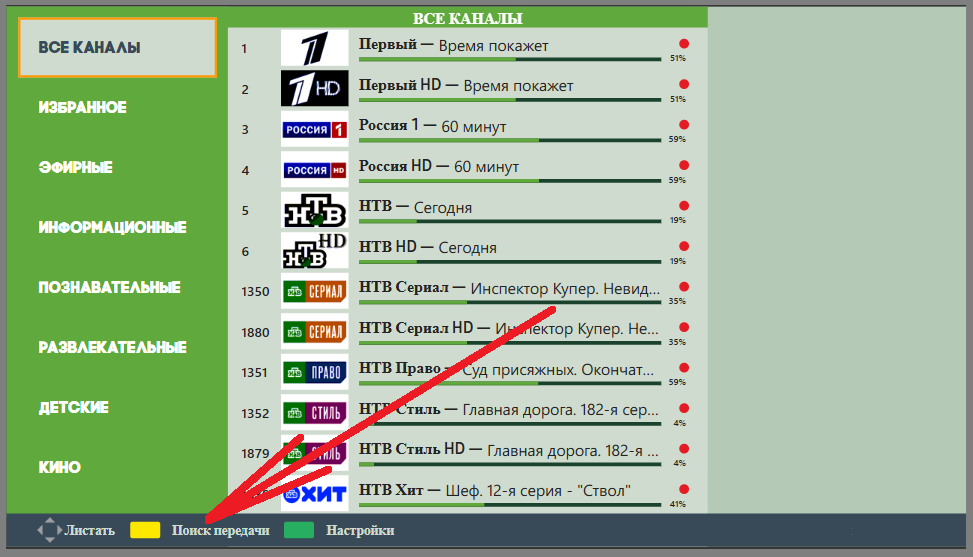
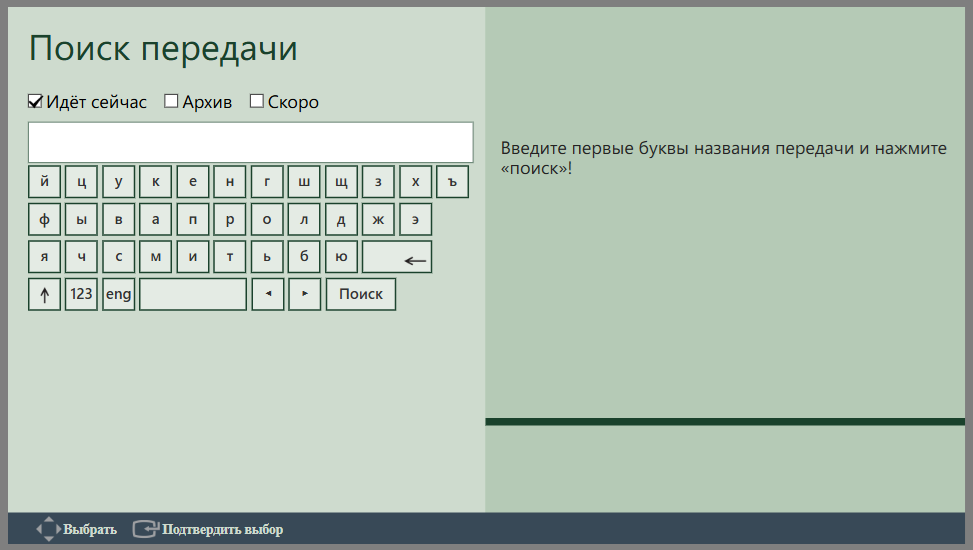
- Open Programme search with the yellow button in the app legend or on the remote.
- Select the required checkboxes: On now, Archive or Soon.
- Enter the programme name or part of it.
- Press Search.