Buying and installing StalkerTV
Android 4.0.3 or later is required. The app is paid and installed from Google Play.
You can find the app by scanning the QR code or by searching Google Play for StalkerTV.

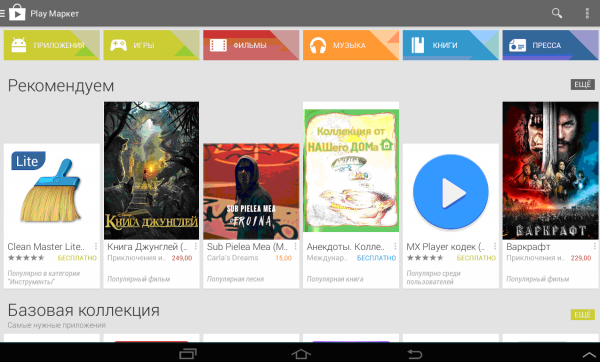
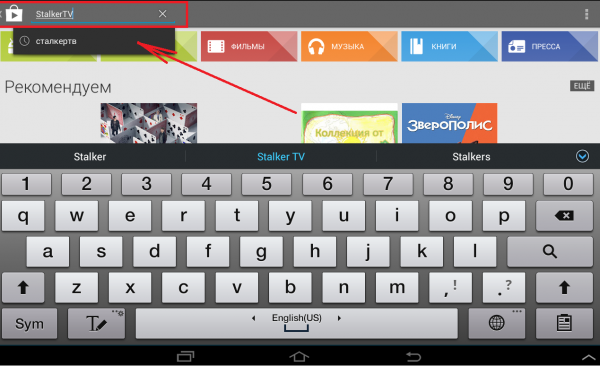
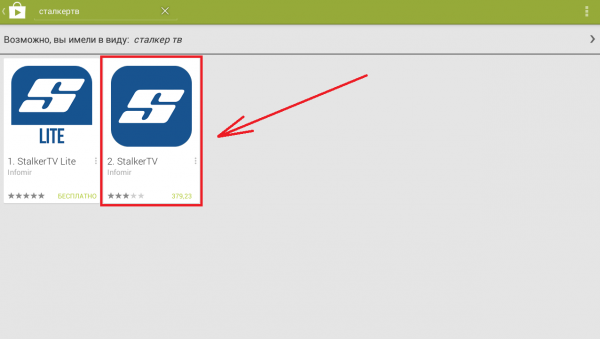
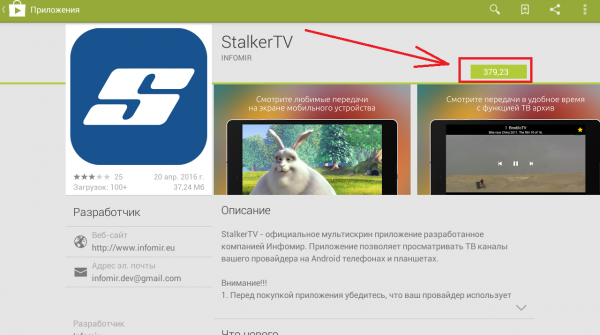
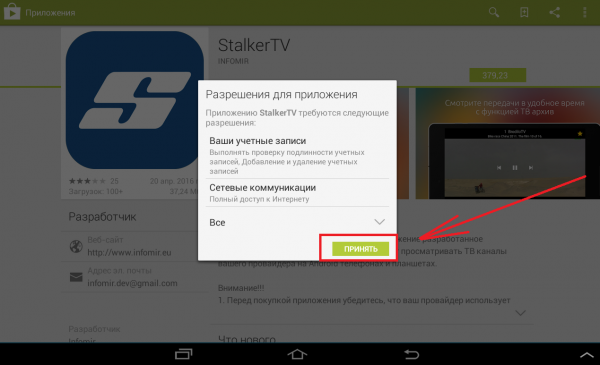
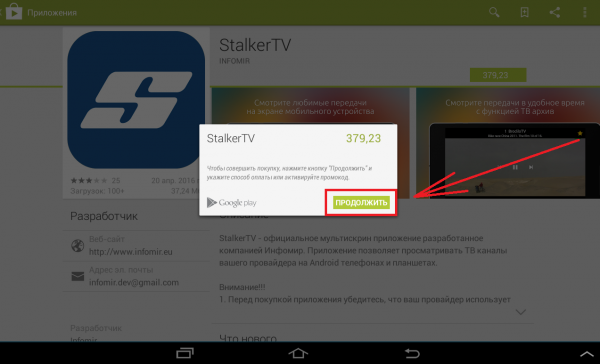
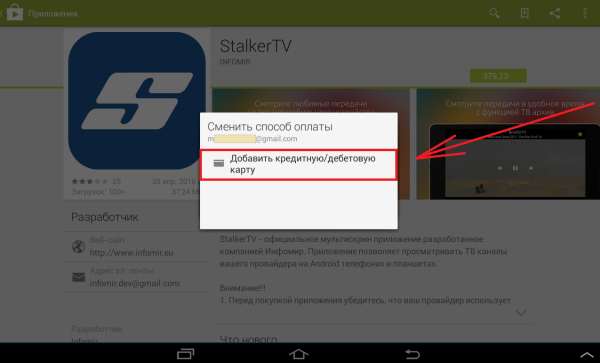
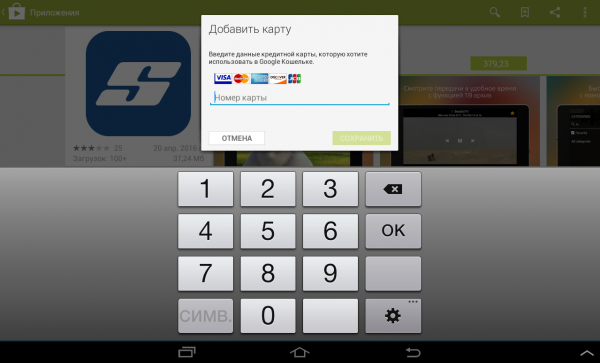
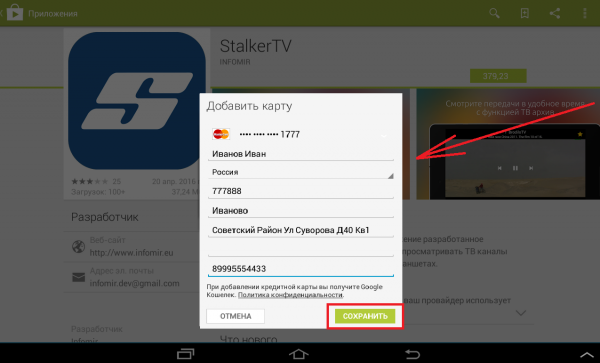
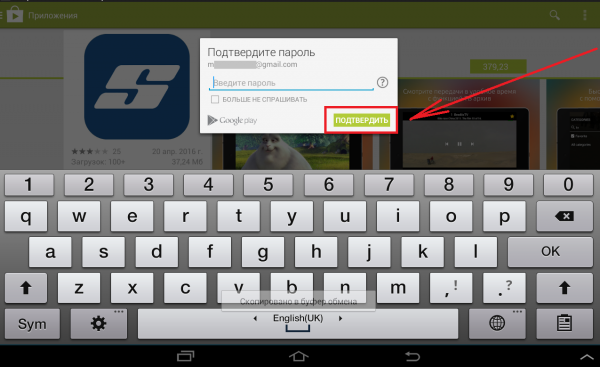
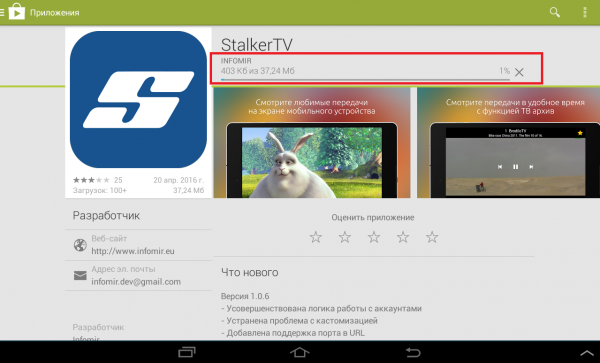
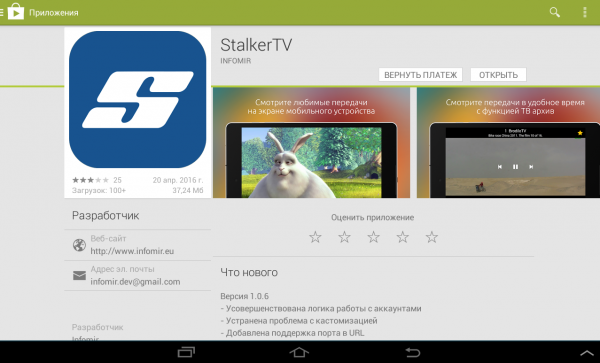
- Open Google Play.
- Search for StalkerTV.
- Select the app in the search results.
- Open the app page, check the description and press the purchase button.
- Confirm the app permissions.
- Choose a payment method: use an existing card or add a new one.
- Enter your Google account password and confirm the purchase.
- Wait for installation to finish and press Open.
Signing in to the app
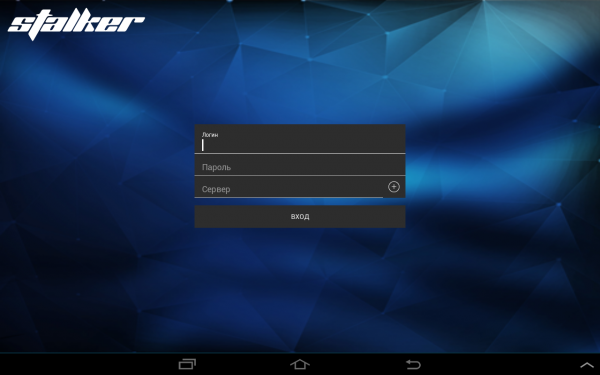
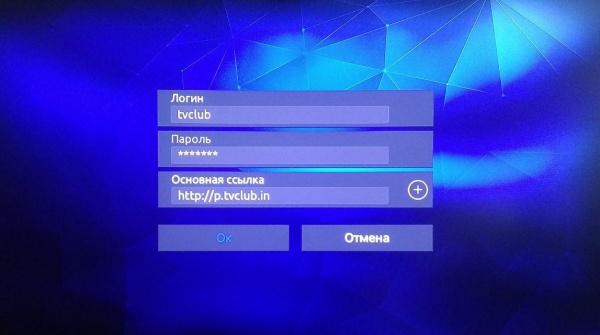
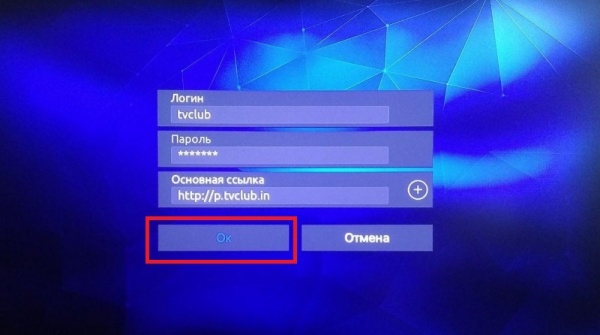
Open the app and enter your TVClub login, password and server address. Use the credentials from your TVClub account or from the Multiroom service. In the server field enter http://p.tvclub.in.
Watching channels, EPG and catch-up
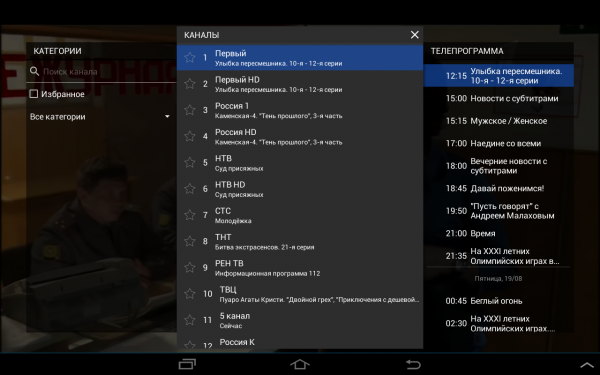
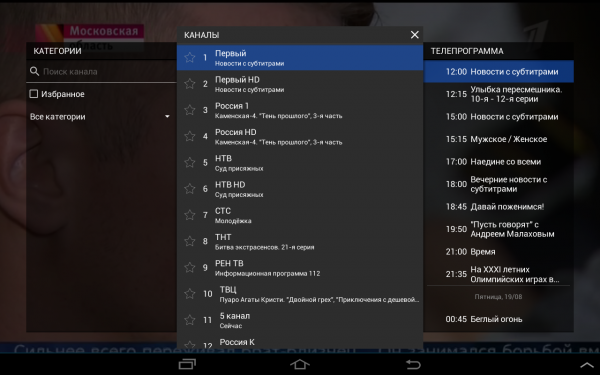
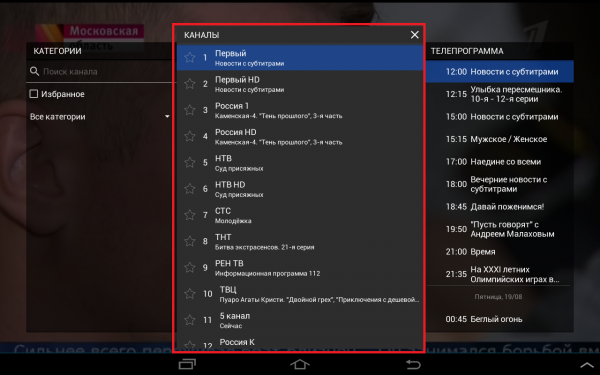
Watching TV channels
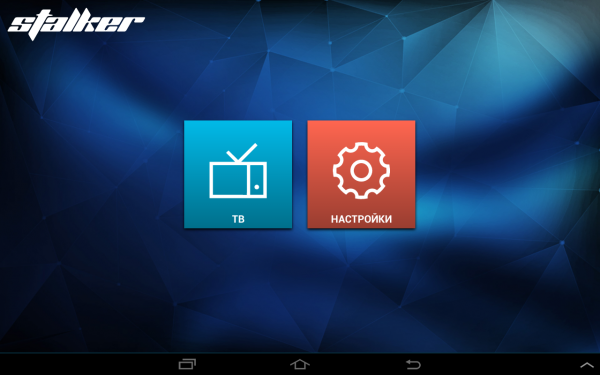
- Open the TV section.
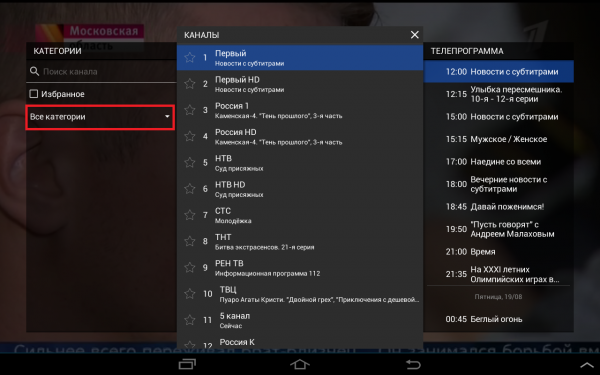
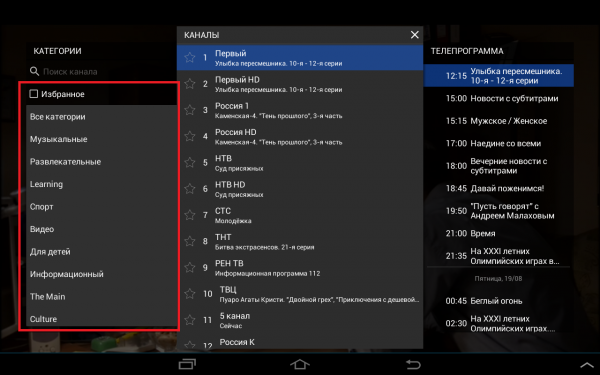
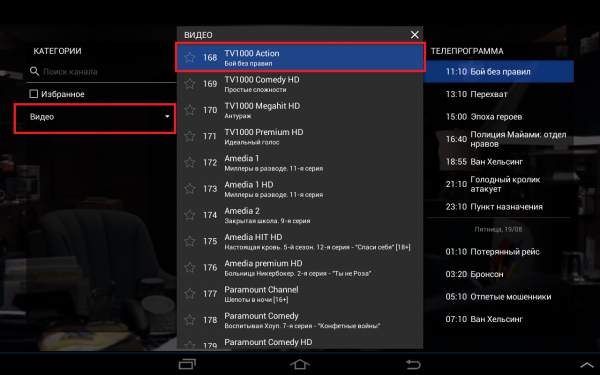
- Expand the category list.
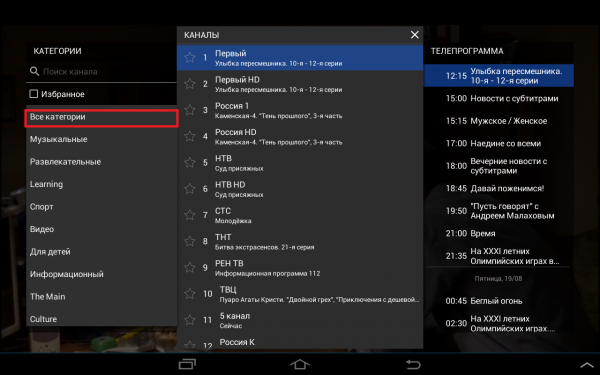
- Choose the required category.
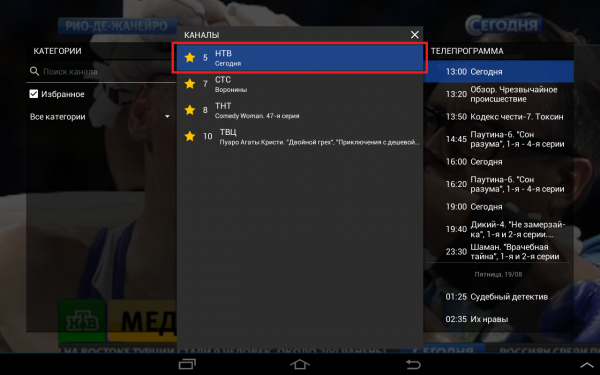
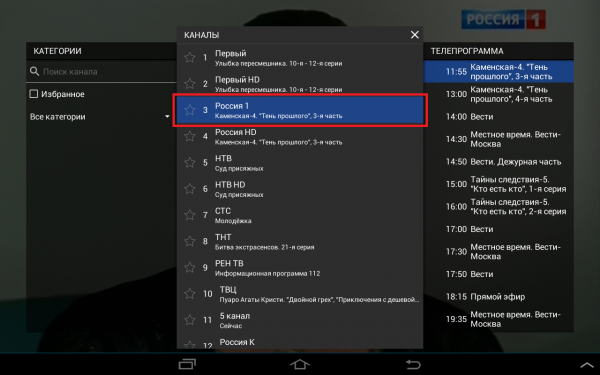
- Select a channel from the list.
- Use the left and right buttons to switch channels inside the selected category.

Using the program guide
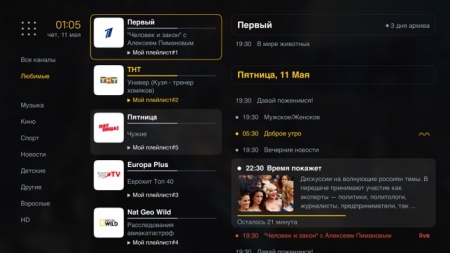
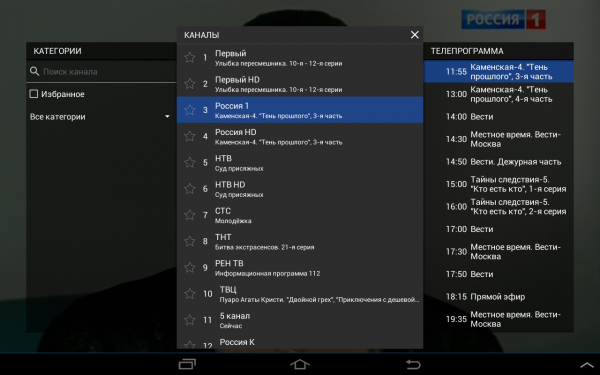
- Open the Program guide section.
- Select the required channel.
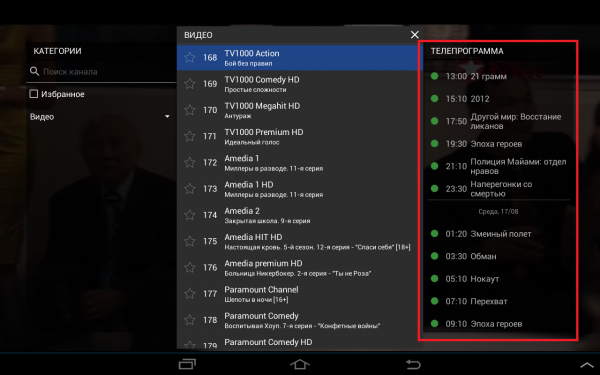
- Use the program guide section to view the schedule for that channel.
Watching catch-up recordings
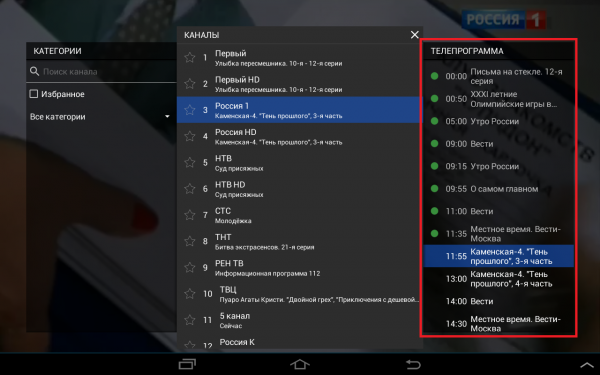
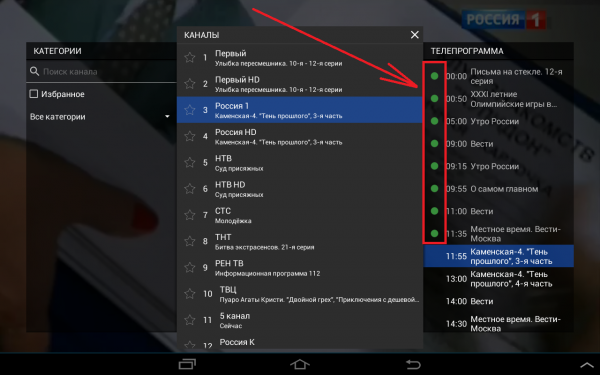
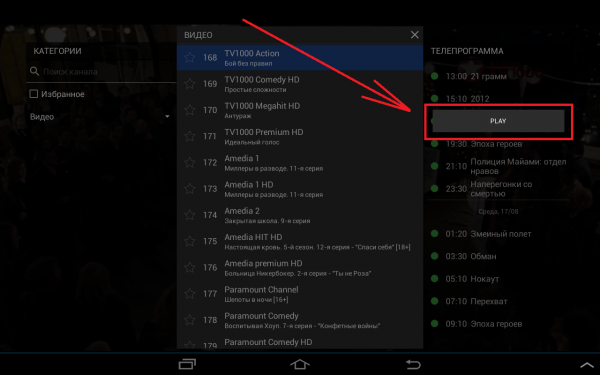
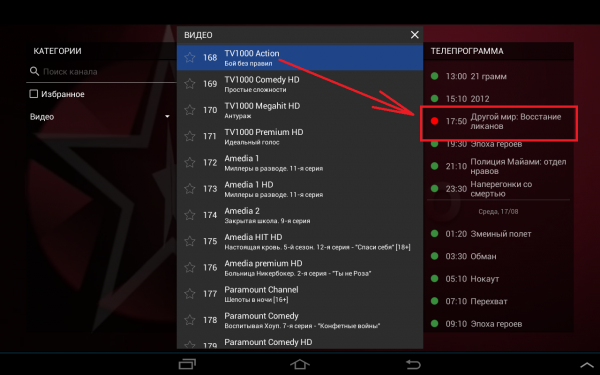
- Programs marked with a green dot are available as recordings.
- Select a channel and open the program guide.
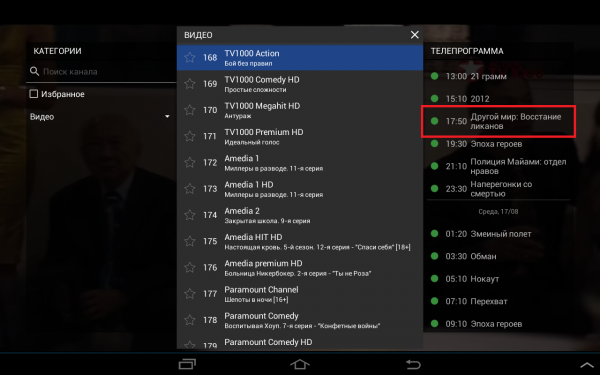
- Choose the program you want to watch and press Play.
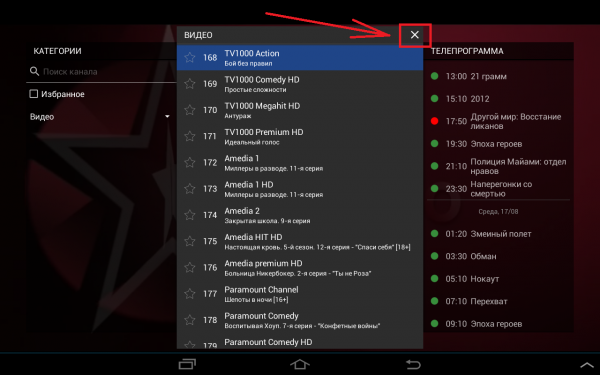
- Close the menu by pressing
 .
.
Adding a channel to favorites
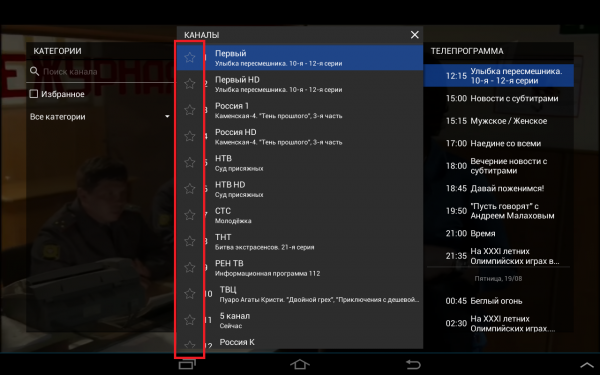
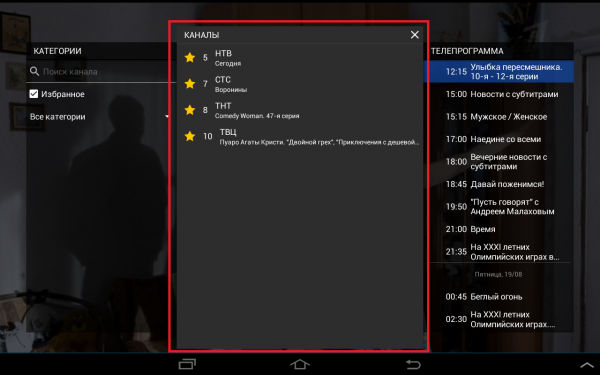
- Open the channel list.
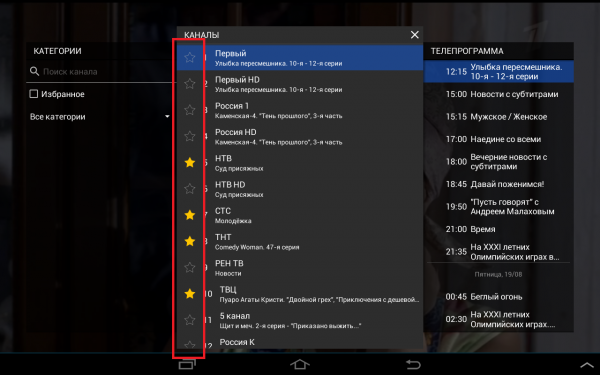
- Mark the channel with the
 icon. Press the same icon again to remove the channel from favorites.
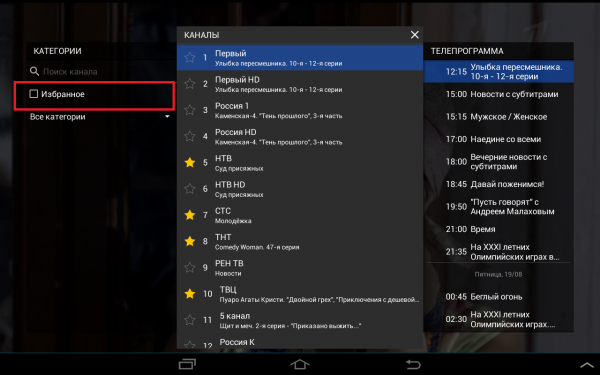
 - Open Favorites and select the channel for viewing.