Smart IPTV lets you watch TVClub on Samsung and LG TVs through a personal playlist. The app is paid, but the developer provides a free 7-day trial period.
Important: if Smart IPTV is not available in the Samsung app store, use the USB installation method.
Installing Smart IPTV
Samsung: installing from a USB drive
The developer’s Samsung installation guide is available at siptv.eu/howto/sammy. You need a USB drive formatted as FAT32.
- Create a
userwidgetfolder in the root of the USB drive. - For Samsung Tizen J/K/M/N/Q/R series, put
SmartIPTV.tmgandwidget.licenseintouserwidget. Developer archive: siptv_tizen.zip. - For Samsung E/ES/F/H/HU/J4/J52 non-Tizen series, put the
siptv_orsayZIP archive into the USB drive root. Do not unpack it. Developer archive: siptv_orsay.zip. - Insert the USB drive into the TV and wait for the Smart IPTV installation message.
Limitation: Smart IPTV does not work on Samsung D series or older models. On Samsung Tizen J series, the app may be removed after the TV is turned off if the USB drive is removed.
Samsung: installing from the app store
- Open the app store on the Samsung TV.
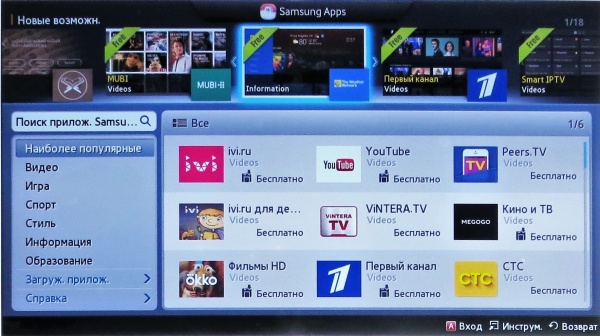
- Select the search field and press Enter on the remote.
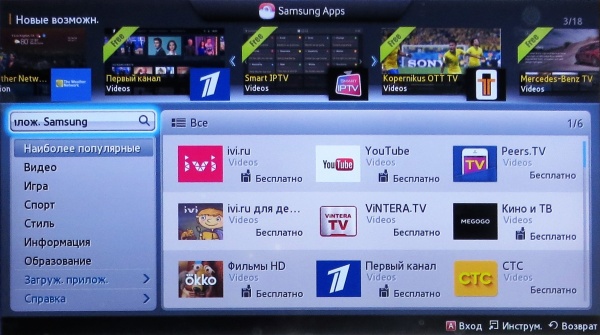
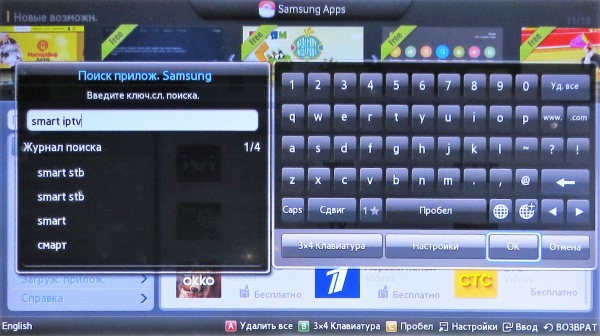
- Enter
Smart IPTVand confirm the search.
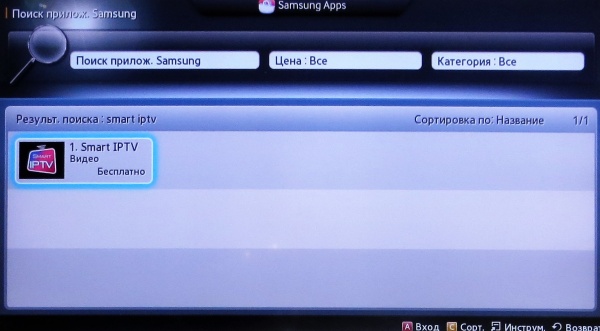
- Select Smart IPTV in the search results.
- Open the app card and start the download.
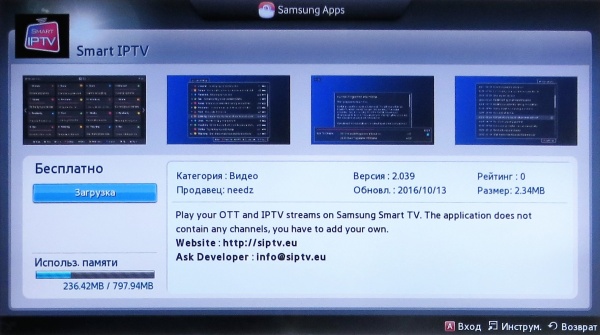
- Wait for the successful installation message.
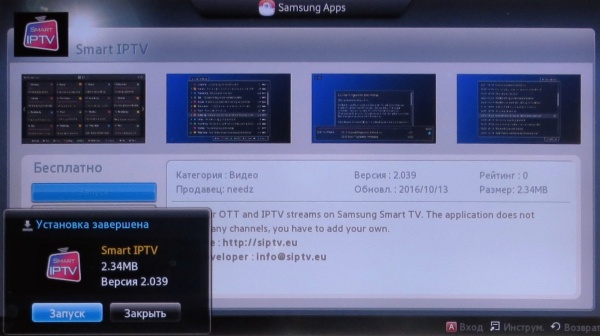
LG: installing from the app store
- Open the app store on the LG TV.
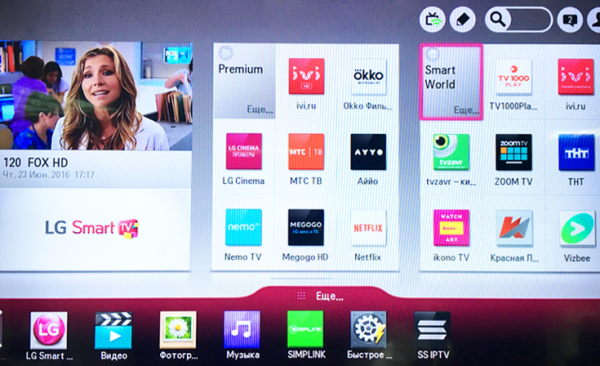
- Enter
Smart IPTVin the search field.

- Select Smart IPTV in the search results.
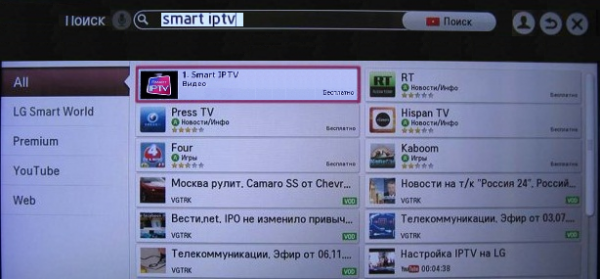
- Choose Install and wait until installation is complete.

Setting up the app with a playlist
The playlist is uploaded on the Smart IPTV developer website. You do not need to use the TV for this step; it is usually easier from a computer or phone. Your personal playlist link and EPG link are available in the TVClub personal account.
Option 1: uploading the playlist link
- Open the developer’s My List page.
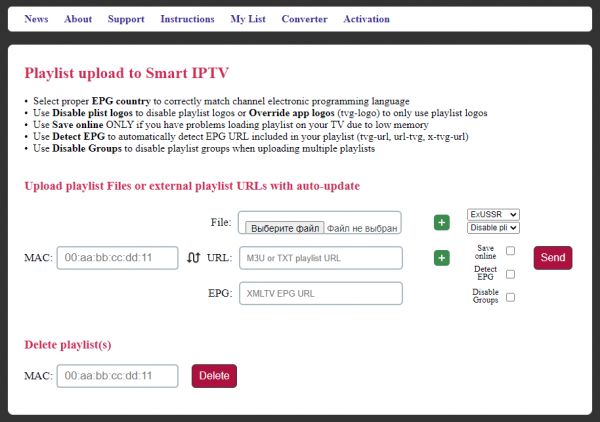
- In the
MACfield, enter the TV MAC address as 12 characters without colons. - In the
URLfield, paste the playlist link from your TVClub account. - Enable
Detect EPGif you want to use the TVClub programme guide.
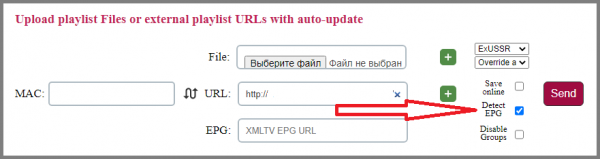
- In the
EPGfield, paste the EPG link from your account. If you prefer the app’s own programme guide, leaveDetect EPGdisabled and do not fill the EPG field. - Enable
Overwrite app logosif you want TVClub channel logos.
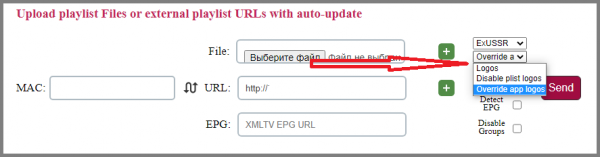
- Press
Send. After a successful upload, restart Smart IPTV on the TV.
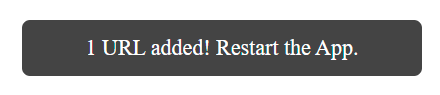
Option 2: uploading a playlist file
If you prefer uploading a file, use the same My List page.
- In the
Filefield, choose the saved playlist file. - Enable
Detect EPGif you want to use the TVClub programme guide.
- In the
EPGfield, paste the EPG link from your account. If you prefer the app’s own programme guide, leaveDetect EPGdisabled and do not fill the EPG field. - Enable
Overwrite app logosif you want TVClub channel logos.
- Press
Send. After a successful upload, restart the app on the TV.

Activating the app
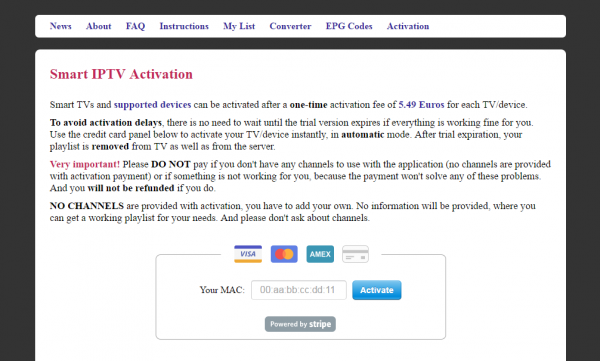
After the trial period, Smart IPTV must be activated on the developer website. Open the Activation page, enter the TV MAC address and choose a payment method. The price is shown on the same page.
Watching channels, EPG and catch-up
Watching TV channels
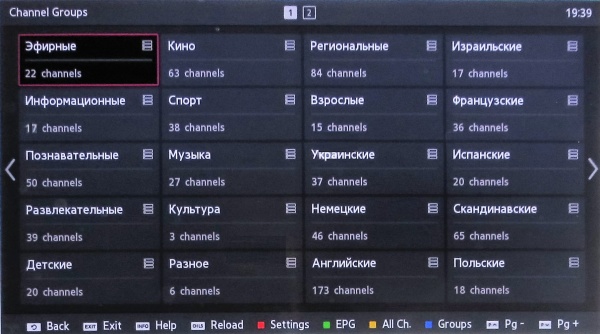
Open the channel group menu and choose the needed group. On many remotes, the blue D button opens the group menu.
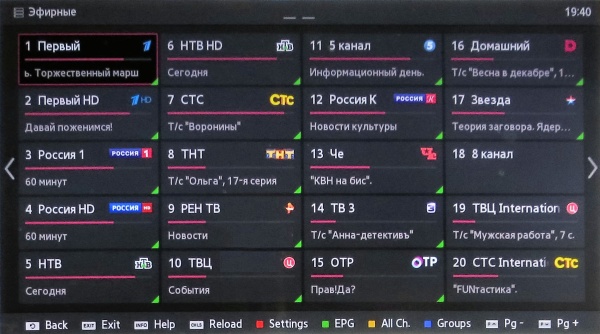
After choosing a group, the channel list opens. Select a channel to watch. Press Return to go back to the selected category menu.
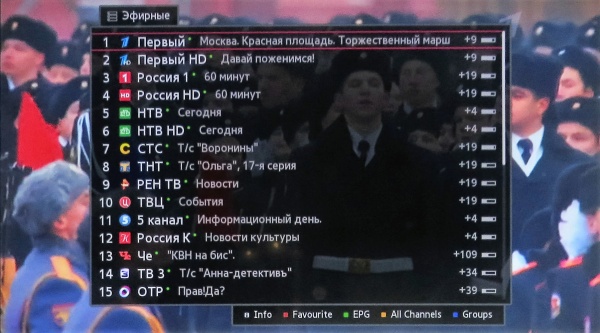
During playback, press CH List to open the channel list for the current category.
Viewing the programme guide
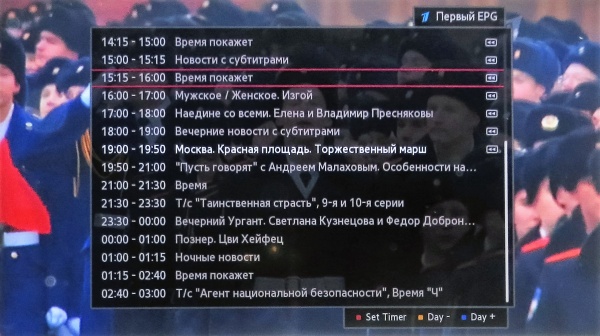
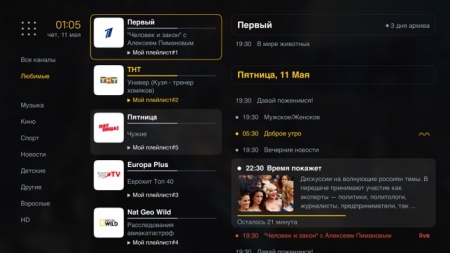
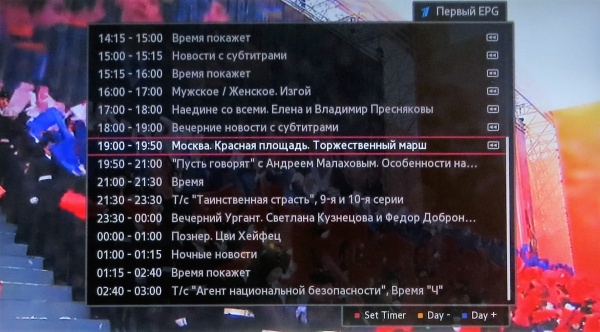
While watching a channel, press the green B button on the remote to open the programme guide.
Watching catch-up programmes
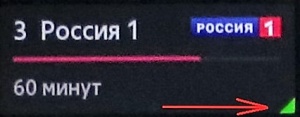
Catch-up is available on channels marked with a green indicator.
In the programme guide, choose the needed programme and open it with the remote. Use the up and down buttons to move between programmes.