TVClub Player for Windows lets you watch TV channels, the program guide and catch-up recordings on a computer. This guide covers installation, sign-in, account settings, channel categories, EPG, catch-up, Favorites, search, font size, aspect ratio and audio track selection.
About the app
The app works on Windows XP and newer Windows versions. For comfortable playback, use a computer with at least 1 GB of RAM, a stable broadband internet connection and about 90 MB of free disk space.
Download TVClub Player for Windows: tvclub_setup_209.exe.

Changes
- 15 March 2018: redesigned interface, light and dark themes, buffer size setting, teletext, 10-band equalizer and program search were added. Known bugs were also fixed.
- 12 July 2017: the My Programs section was added for recently watched and saved programs. Support for the Play media key was added.
- 1 May 2017: a critical startup freeze was fixed.
Installing the player
- Download tvclub_setup_209.exe.
- Open the downloaded installation file.
- In the setup wizard, click Next.

Click Next on the first installer step. - Choose the installation folder or keep the default path.

Change the installation folder only if needed. - In the Ready to Install the Program window, click Install.

Click Install to start installation. - Wait until installation finishes.

Wait until installation finishes. - Click Finish. If the launch option is selected, TVClub Player opens immediately.

Click Finish to close the setup wizard.
Signing in
- Start TVClub Player.
- Enter your TVClub login and password.
- Click Save.


Important: the TVClub login and password are case-sensitive. Enter them exactly as they were entered during registration.
After successful authorization, the main player window opens.
Settings
To open settings, click  on the right side of the player window.

Changing login and password
- Click the settings menu icon and choose Username and password.
- Enter the new account details in the window and click Save.

Adding and disabling channel categories
Open the settings menu and choose the category section.

Choose Channel category list setup, select the categories that should be shown in the list, clear the categories you do not need and click Save.

Viewing account information
Open the settings menu and choose the information section.


Streaming server, time zone and buffer
Open the settings menu and choose streaming settings.

PIN code and parental control
Open the settings menu and choose parental control settings.

Audio and equalizer
Open the settings menu and choose audio settings.

Interface color scheme
Open the settings menu and choose a light or dark theme.

Personal account on the website
Settings can open the TVClub personal account page on the website.

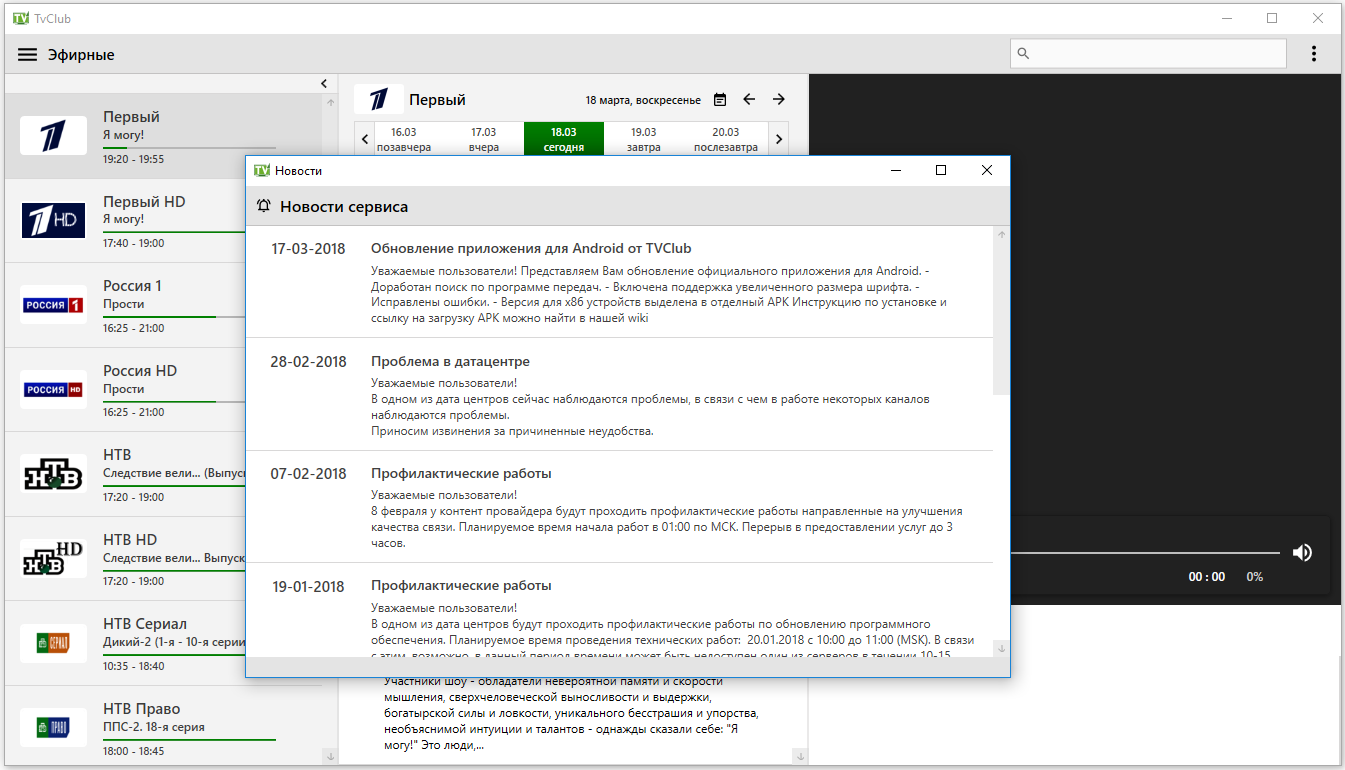
Service news
The news section shows service messages and important notifications.

Watching TV channels, EPG and catch-up
Watching TV channels
Choose a channel category in the left column. The current category is marked with the category  icon.
icon.

- Select a channel in the list.
- Start playback with a double click, or open the context menu with the right mouse button and choose Watch.

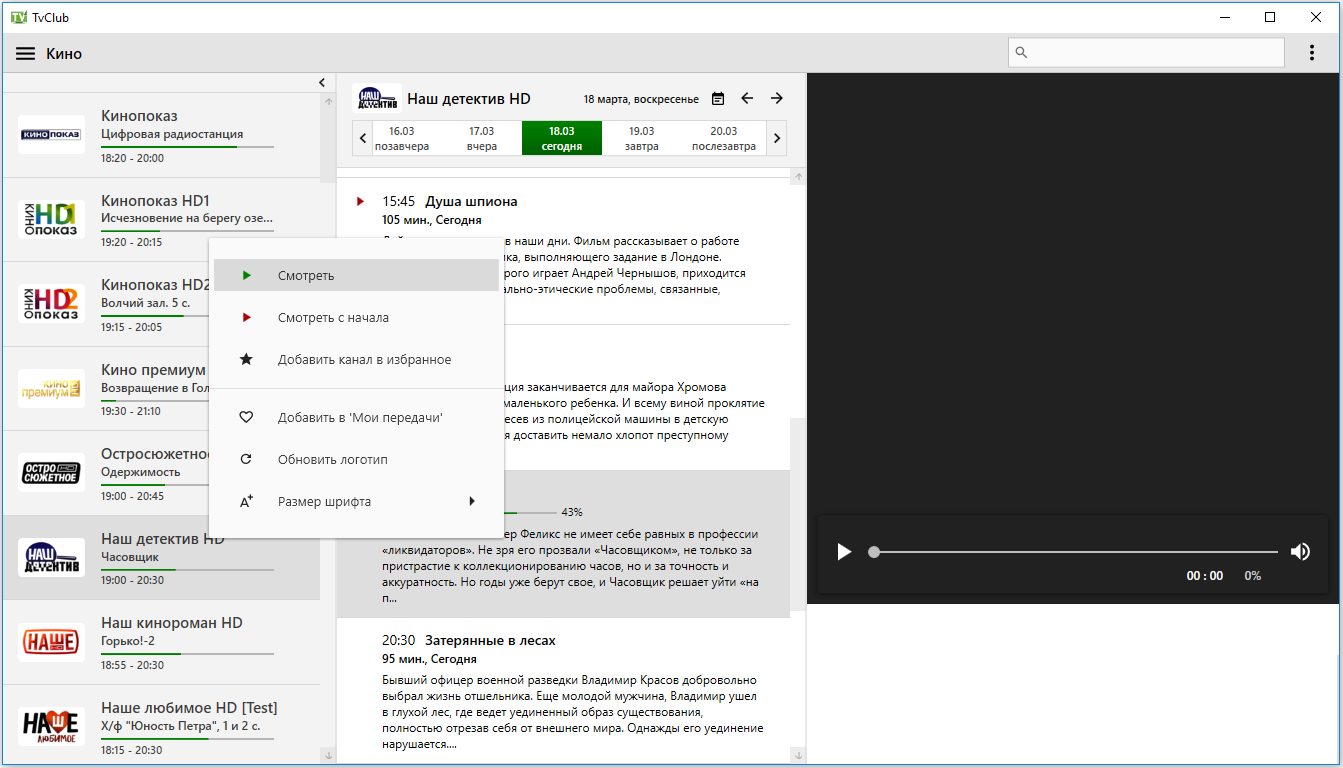

If the current program has been running for more than 10 minutes, you can start it from the beginning from catch-up: open the program context menu and choose Watch recording.
Viewing the program guide
Select a channel and open its program guide. Use the date  buttons to change the day.


Starting a catch-up program
To watch a recording, open the program guide for the selected channel and choose the required program. Catch-up playback starts with a double click on the program or from the context menu: right-click the program and choose Watch current recording. Programs available in catch-up are marked with the catch-up  icon.
icon.

Creating a Favorites list
- Select a channel in the list.
- Add it to Favorites through the menu or the favorite-channel control.


To remove a channel from Favorites, select it, open the context menu with the right mouse button and choose Remove channel from Favorites.
Searching for a program
To search for a program, use the search  icon. Enter the program title in the search field and click the search icon or press Enter.


Changing the app font size
To change the font size, right-click inside the player, choose Font size and use the scale  controls.

Changing the screen aspect ratio
If channel video is displayed with the wrong proportions, right-click the playback screen and choose Aspect ratio.

Choosing an audio track
On channels with several audio tracks, you can choose the required audio language: right-click the playback screen and choose Audio track.